
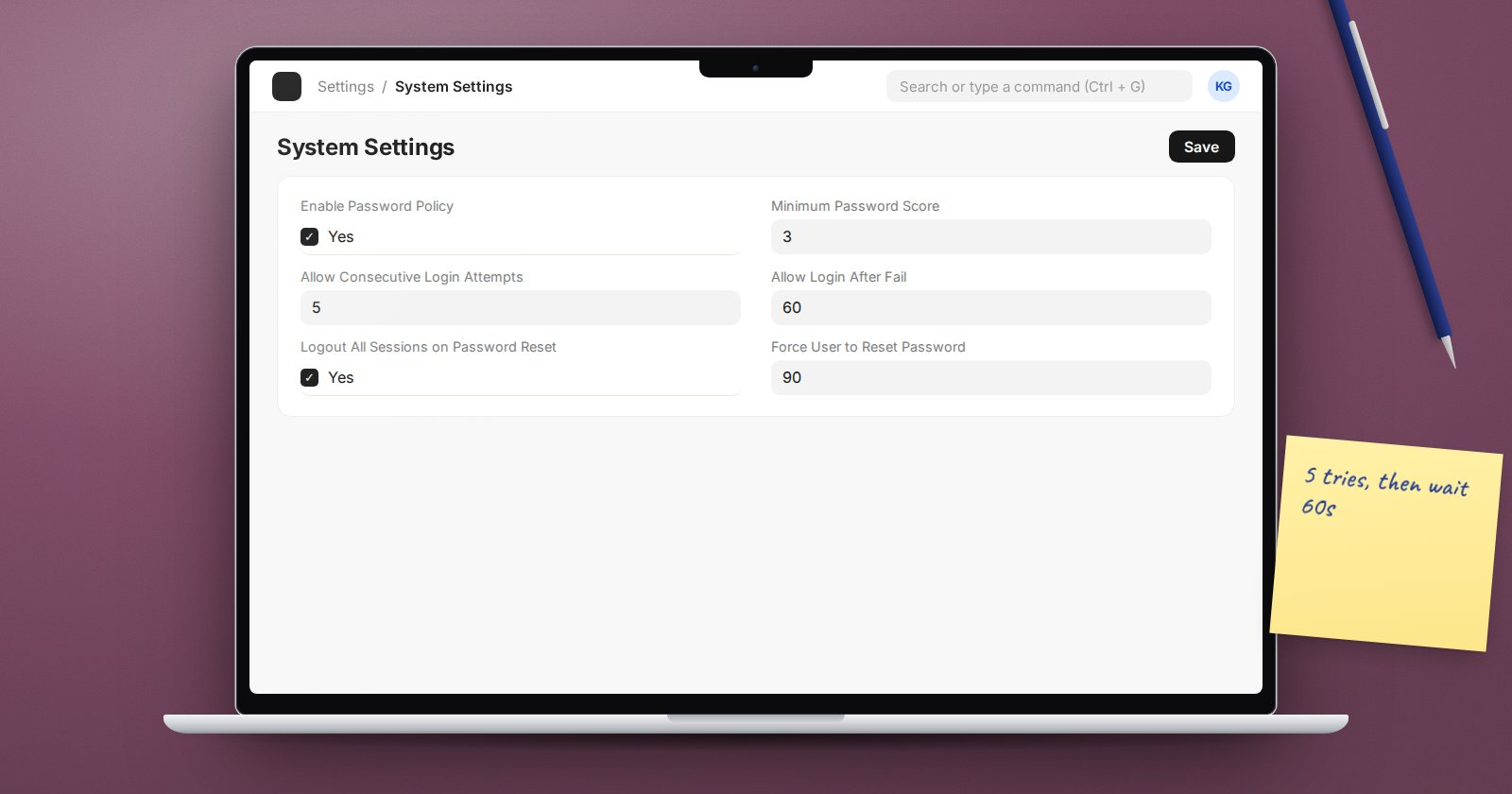
ERPNext ships with sensible security defaults, but defaults are not a policy. Your auditors, your insurer and your own risk tolerance should decide these values. All of them live in System Settings. This article explains each field and its default in the current version.
Password strength
- Enable Password Policy (on by default) makes ERPNext check password strength when a password is set.
- Minimum Password Score (default 2) sets how strong it must be, on a scale of 1 to 4. The field's own help text describes 2 as "somewhat guessable", 3 as "safely unguessable" and 4 as "very unguessable".
The score measures how guessable a password is, not just its length or symbols. A long passphrase of unrelated words usually scores well; a name and year scores badly. For finance and administrator users, a score of 3 or 4 is a reasonable target. Pair it with a password manager so people are not forced into writing passwords down.
Forced password changes
Force User to Reset Password takes a number of days. When set, users whose last password reset is older than that are asked for a new password at login. Leave it at 0 to turn it off.
Current security guidance increasingly favours strong, unique passwords plus 2FA over frequent forced changes, because frequent changes push people to predictable patterns. Decide based on your own policy or audit requirements.
Resetting passwords
- Logout All Sessions on Password Reset (on by default) ends every session when a password is reset. Keep it on; it is how you lock out someone who stole a session.
- Password Reset Link Generation Limit (default 3) limits how many reset links can be generated per hour.
- Reset Password Link Expiry Duration sets how long a reset link stays valid.
Failed login lockout
Under Brute Force Security:
- Allow Consecutive Login Attempts (default 10)
- Allow Login After Fail (default 60, in seconds)
After that many failed attempts in a row, logins are blocked for the lock period. Frappe tracks failures both for the user account and for the IP address the attempts come from. Lowering the attempts and raising the lock time slows down password guessing. Many offices share one public IP address, so very strict values can lock a whole office out because of one person's typos. Test your choice.
Sessions
- Session Expiry (idle timeout) uses hours and minutes,
hh:mm. The default is170:00, roughly a week. For shared or public computers, a much shorter value is safer. - Allow only one session per user stops the same account being used on several devices at once, which also discourages password sharing. The field notes that mobile app sessions are still allowed.
Per-user controls
On each User record you can also set:
- Restrict IP - only allow logins from listed IP addresses
- Login After and Login Before - only allow logins between certain hours
- Simultaneous Sessions - the number of sessions allowed for that user
These suit high-privilege accounts, such as a finance approver who should only log in from the office.
Email link login
Login with email link is on by default in this version: users can request a one-time login link by email. That means the security of each user's email account is now part of your ERPNext security. If you cannot vouch for those mailboxes, consider turning it off.
Password and lockout checklist
- [ ] Password policy on, minimum score agreed and set
- [ ] Forced reset period decided and documented
- [ ] Logout on password reset kept on
- [ ] Lockout attempts and time tested with a real office network
- [ ] Session expiry suited to how computers are shared
- [ ] Restrict IP or login hours set for high-risk accounts
- [ ] Email link login reviewed
Users, roles and these System Settings are covered together in our ERPNext Administration Without Code course.
