
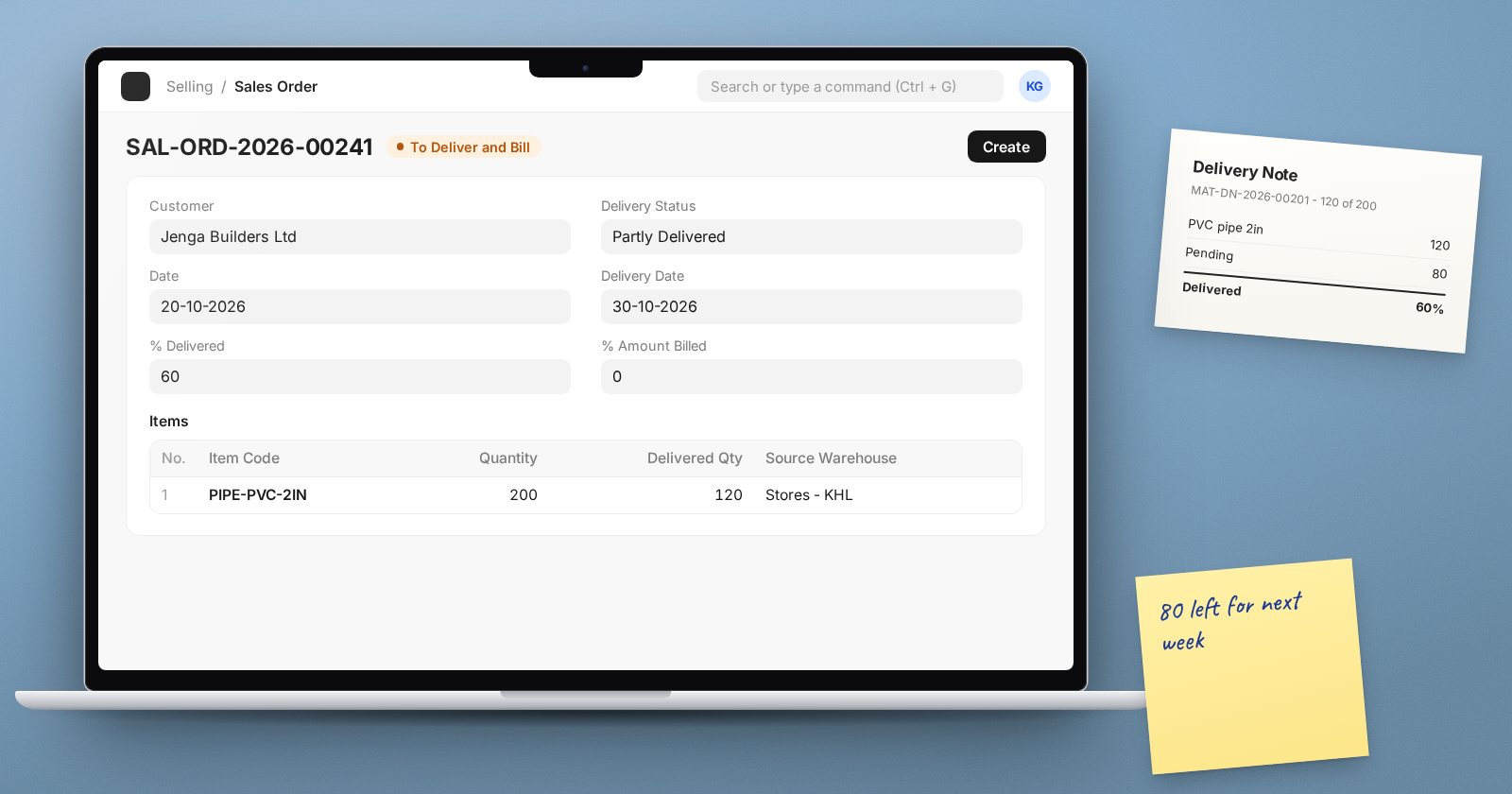
A customer orders 200 units. You have 120 today and the rest arrives next week. The customer wants what you have now. ERPNext handles this without any special setup: you deliver against the same Sales Order as many times as you need, and it keeps count of what is still owed.
How ERPNext tracks deliveries
Each Sales Order line knows its ordered quantity and its delivered quantity. Every submitted Delivery Note made from the order adds to the delivered quantity. The order shows:
- % Delivered for the whole order.
- Delivery Status: Not Delivered, Partly Delivered or Fully Delivered.
- Status, such as To Deliver and Bill, To Bill or Completed.
Making the first delivery
- Open the submitted Sales Order and choose Create > Delivery Note.
- ERPNext copies all lines with their pending quantities.
- Reduce each quantity to what is actually going on the truck. Remove lines you are not delivering at all.
- Check the warehouse, then submit.
The order now shows Partly Delivered, and the delivered quantity on each line is updated.
The next delivery
When more stock arrives, open the same Sales Order and use Create > Delivery Note again. This time ERPNext offers only what is still pending: the 80 units left, not the original 200. Deliver, submit, repeat until the order is complete.
You can also start from a new Delivery Note and use Get Items From > Sales Order to pull pending lines from one or more orders for the same customer.
Seeing what is still owed
- The Sales Order list filtered by Delivery Status = Partly Delivered shows orders with balances outstanding.
- The Sales Order Analysis report lists ordered, delivered and pending quantities by order and item, which is useful for a daily despatch meeting.
- The Delayed Order Report helps find orders past their delivery date.
When the rest will never be delivered
Sometimes the customer cancels the balance, or the item is discontinued. Do not leave the order open. Open it and use Status > Close. A closed order stops showing as pending, and the stock it was holding back is released. Before closing, ERPNext keeps the undelivered quantity reserved, which reduces the projected quantity of that item and can trigger needless purchases.
If the customer simply wants to pause, use Status > Hold instead, which can be resumed later.
If quantities change before delivery, use Update Items on the order to change quantities or rates rather than cancelling and re-entering the whole order.
Making sure orders come first
Selling Settings has Is Sales Order required to create Sales Invoice/Delivery Note?. Set it to Yes if every delivery must be linked to an order. That stops despatch staff creating free-standing Delivery Notes and keeps your pending-orders figures honest.
Reserving stock for specific orders
If you want to hold physical stock for a particular order, so that it is not delivered to someone else first, v16 has Stock Reservation. Turn on Enable stock reservation on the Stock Reservation tab of Stock Settings; Sales Orders then gain Reserve and Unreserve actions. Use it for priority customers or made-to-order goods, not for every order.
Checklist
- Every Delivery Note is made from its Sales Order
- Quantities on the Delivery Note match what is physically loaded
- Partly delivered orders are reviewed daily
- Orders that will not be completed are closed, not left open
Quoting, selling, delivering and invoicing in the right order is the subject of the Sales Essentials course.
