
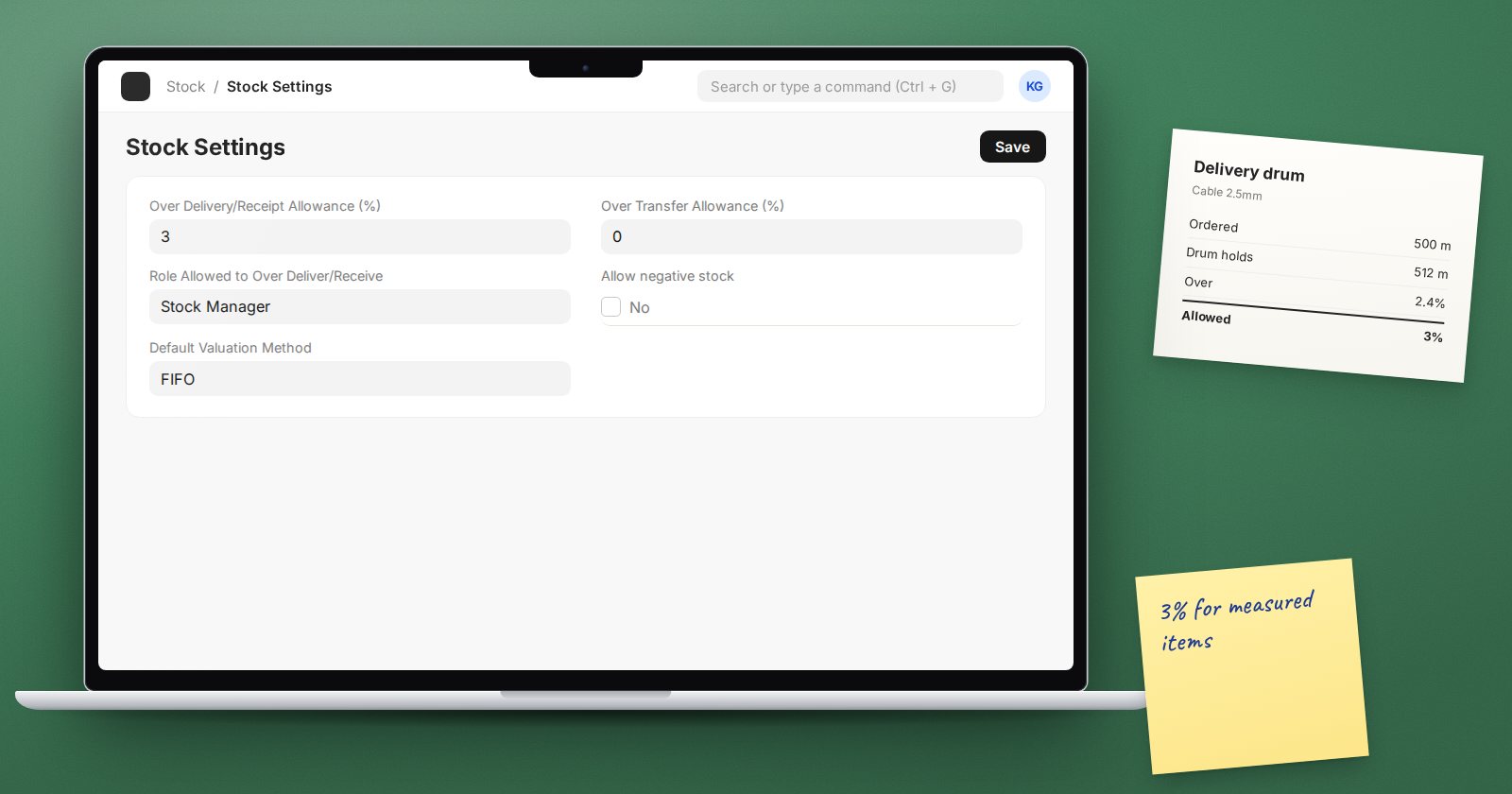
A supplier orders 100 bags but delivers 103. A customer orders 500 metres of cable and the drum holds 512. Strictly, both receipts exceed the order. In real life, small differences like these are normal, and blocking them stops work. ERPNext lets you set a tolerance: how much over the order a receipt or delivery may go before it is refused.
What ERPNext checks by default
When you submit a Purchase Receipt against a Purchase Order, or a Delivery Note against a Sales Order, ERPNext compares the quantity with what is still open on the order. With no allowance, any excess is refused with a "Limit Crossed" message that says by how much the document is over and suggests updating the allowance.
That default is sensible. Excess quantities should be a decision, not an accident.
Setting the allowance
Company-wide
In Stock Settings, Stock Validations tab, set Over Delivery/Receipt Allowance (%). With 5%, an order for 100 may be received or delivered up to 105.
Per item
The Item has its own Over Delivery/Receipt Allowance (%) field on the Details tab. When set, it is used for that item instead of the company figure. Use this for items that genuinely vary, such as cable on drums, bulk liquids or goods sold by weight, and keep the company figure low or zero.
Letting a supervisor go beyond the limit
Role Allowed to Over Deliver/Receive in Stock Settings names a role whose users can submit beyond the allowance. Instead of being stopped, they see a warning. Give this role to a stores supervisor or purchasing manager, not to every clerk, so that bigger exceptions get a second pair of eyes.
Related allowances
ERPNext uses the same idea elsewhere:
- Over Transfer Allowance (%) in Stock Settings: how far a stock transfer may exceed a Material Request.
- Over Picking Allowance (%) in Stock Settings: how far a pick may exceed what was requested on a Pick List.
- Over Order Allowance (%) in Buying Settings: how far a Purchase Order may exceed its Material Request.
- Over Billing Allowance (%), set in Accounts Settings and on the Item: how far an invoice may exceed the order value. That one belongs to your accounts team.
Choosing a sensible tolerance
- Zero for most items. Counted items such as cartons or units should match exactly.
- A small percentage for measured items. Base it on how much the physical quantity really varies, and ask the supplier what their normal tolerance is.
- Check the supplier contract. If the contract says deliveries may vary by a set percentage, mirror it.
Remember that over-receipt usually means over-billing. If you accept 105 bags, expect an invoice for 105 bags, so buyers and accounts should agree the allowance together.
What not to do
- Do not set a large company-wide allowance to make an error go away. It removes a useful control from every item.
- Do not fix an over-delivery by editing the Sales Order after the fact without telling the customer. If the order changed, record the change with Update Items on the order so the history is clear.
Try it
- Set the Item allowance to 5% on a measured item.
- Create a Purchase Order for 100, then a Purchase Receipt for 104 and submit: it goes through.
- Try 107: ERPNext stops it and tells you the excess.
- Log in as a user with the override role and try again: you get a warning instead.
The buying side is covered in Procurement Essentials, and the selling side in Sales Essentials.
