
Many "can the system remind us?" requests need no developer at all. ERPNext's Notification DocType sends an email, a system alert, a Slack message or an SMS when something happens to a document. You set it up from the desk.
The parts of a Notification
Search for "New Notification" and you will see:
- Channel - Email, System Notification (the bell in the desk), Slack or SMS.
- Document Type - the DocType to watch, such as Sales Invoice.
- Send Alert On - the event: New, Save, Submit, Cancel, Value Change, Days Before, Days After, Minutes Before, Minutes After, Method or Custom.
- Condition - when to send, written either as a Python expression or as filters, depending on the Condition Type you choose.
- Recipients - who receives it: a field on the document, a role, or fixed addresses in CC and BCC.
- Subject and Message - Jinja templates with the document available as
doc.
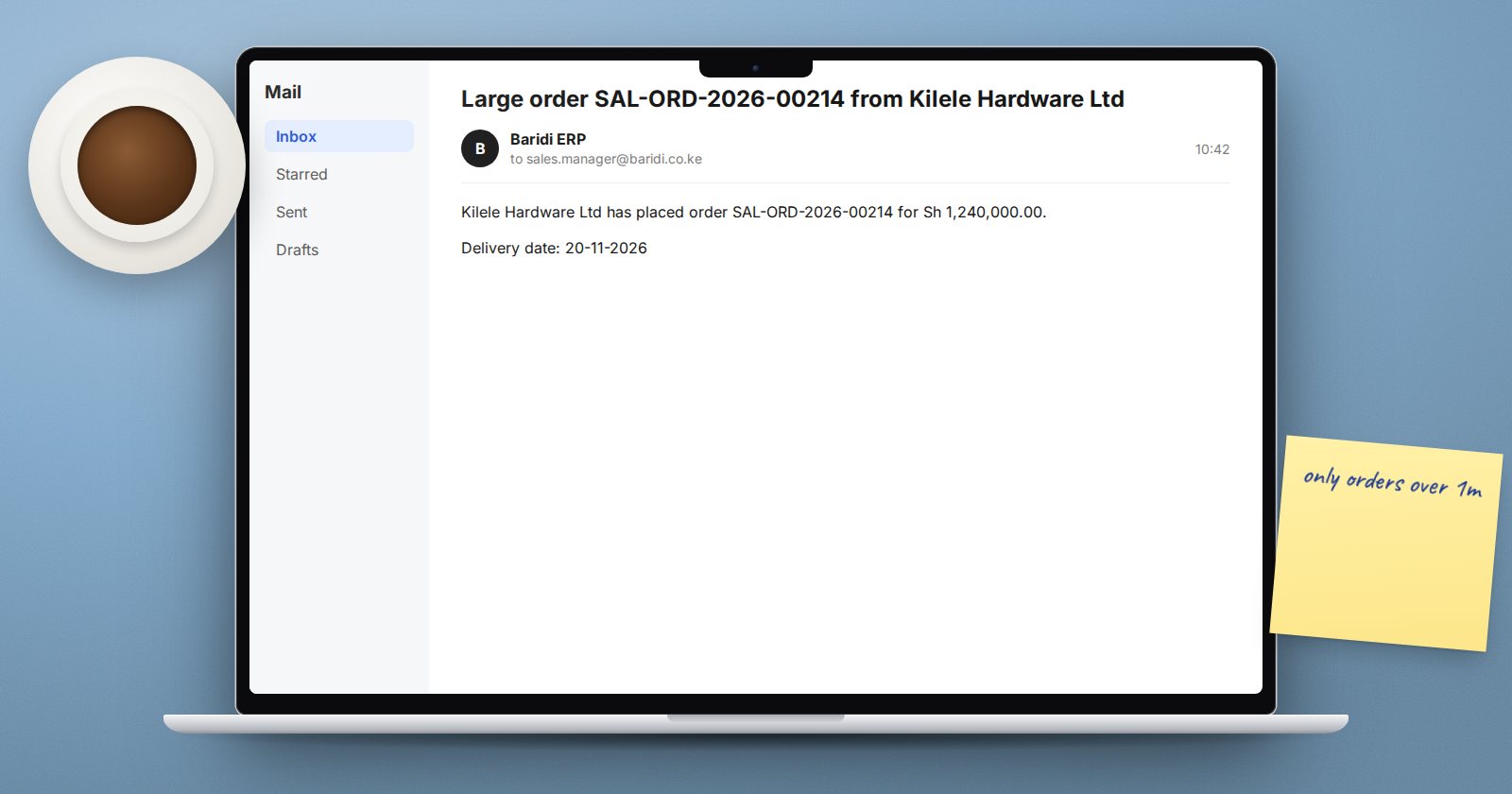
Example 1: tell the manager about a big order
- Document Type: Sales Order
- Send Alert On: Submit
- Condition:
doc.grand_total > 1000000 - Recipients: Receiver By Role = Sales Manager
- Subject:
Large order {{ doc.name }} from {{ doc.customer_name }}
Message:
<p>{{ doc.customer_name }} has placed order {{ doc.name }}
for {{ doc.get_formatted("grand_total") }}.</p>
<p>Delivery date: {{ frappe.utils.format_date(doc.delivery_date) }}</p>
Example 2: overdue invoice reminder
- Document Type: Sales Invoice
- Send Alert On: Days After
- Reference Date:
due_date - Days Before or After: 3
- Condition:
doc.docstatus == 1 and doc.outstanding_amount > 0 - Recipients: Receiver By Document Field =
contact_email - Attach Print: ticked, with your invoice print format
Date-based notifications run once a day through the scheduler. Each day ERPNext looks for documents whose reference date is exactly the chosen number of days before or after today, then checks the condition. So this reminder goes out once, three days after the due date. For a second reminder at 14 days, create a second Notification.
Value Change for status tracking
Value Change fires when a chosen field changes on save. Point it at a field like status or workflow_state and you get an alert each time the document moves on. The condition still applies, so you can limit it to one target value, for example doc.status == "Completed".
Set Property After Alert
The Set Property After Alert and Value To Be Set fields write a value back to the document once the alert is sent. A common use is a custom check field such as "Reminder Sent", which you then add to the condition so the same alert never sends twice.
Things that stop alerts arriving
- No outgoing email account. Email notifications go to the Email Queue and need a working default outgoing Email Account.
- Scheduler off. Date-based and time-offset notifications depend on scheduled jobs. Check that Enable Scheduled Jobs is ticked in System Settings.
- Condition errors. A condition that refers to a field that does not exist will error when the document is saved. Test on a test site first.
- Empty recipient field. If the document field you chose is blank, there is nobody to send to.
When an email does not arrive, open the Email Queue list. Each message shows Not Sent, Sending, Sent, Partially Sent or Error, and the error text tells you whether the problem is the mail server or the address.
Keep them few and useful
A notification that fires on every save trains people to ignore all of them. Prefer Submit or a specific Value Change over Save, and always add a condition that narrows the alert to cases someone must act on.
Try it
- On a test site, create the large order notification above with a low threshold.
- Submit a sales order above the threshold and check the Email Queue.
- Create the overdue reminder with Days After = 0 and an invoice due today, then wait for the daily job or check the queue the next day.
- Change one notification's channel to System Notification and watch the bell.
Notifications are one of the automation tools covered in ERPNext Administration Without Code.
