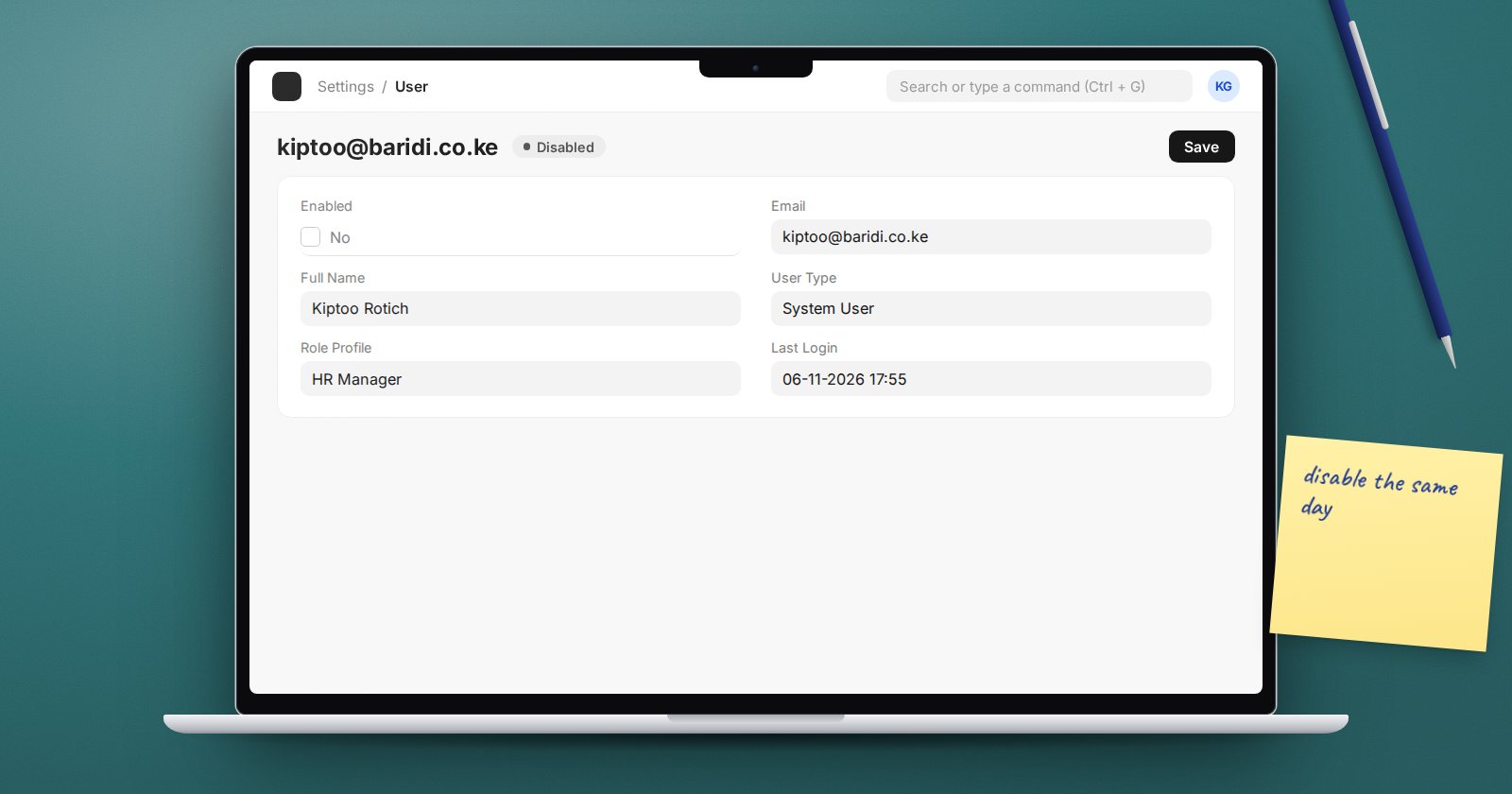
When someone leaves, their ERPNext access often outlives their employment by weeks. Nobody told IT, or IT disabled the email but forgot the ERP. A former employee with a working login can still read customer lists, approve documents or export payroll. Offboarding should happen on the last day, from a written list.
Who triggers it
Make HR responsible for telling the ERPNext administrator, in writing, the date and time access should end. For a hostile departure, that time is "now", before the person is told. Agree this rule with management once, so nobody has to debate it on the day.
Step 1: Disable the user
Open the User record and untick Enabled, then save. Do not delete the user. Deleting breaks the link between that person and every document they created or changed, and the audit trail loses its meaning.
Disabling does more than block the next login:
- Frappe logs the user out of every active session as soon as the change is saved.
- API keys stop working, because ERPNext only accepts keys that belong to enabled users.
From the command line, the same thing is:
bench --site erp.example.com disable-user jane@example.com
Step 2: Check what still runs in their name
Some things keep working after a user is disabled, so look for them:
- Auto Email Reports. Filter the list by Based on Permissions For User. Nothing in these reports checks that the user is still enabled, so they keep sending to the addresses in Email To. Disable them or move them to a current owner, and remove the leaver's personal address from any recipient list.
- Assignment Rules. A leaver in the users list keeps receiving new work that nobody sees.
- Notifications and approvals. Look for workflows, notifications and approver settings that name them, or employees whose Reports To points at them.
- Email accounts. If they had a personal Email Account in ERPNext, disable it or hand the mailbox over.
Step 3: Hand over open work
Open the ToDo list filtered by Allocated To for that user. Reassign open items to a colleague. Check draft documents they owned, such as quotations or purchase orders, so nothing important sits unseen.
Step 4: Update the Employee record
If you use HR in ERPNext, set the employee's Relieving Date and change Status to Left. This keeps headcount reports right and stops them appearing in pickers for new work.
Step 5: Remove server and shared access
For technical staff, ERPNext is only part of it:
- Remove their public key from
~/.ssh/authorized_keysand lock their Linux account withsudo usermod -L jane. - Remove them from the hosting provider's console, the domain registrar and Git repositories.
- Rotate shared secrets they knew: the MariaDB root password, integration API secrets, backup storage keys. Assume anything they could see has left with them.
Step 6: Record it
Write a short note: who left, when access ended, what was disabled, who received their work, which secrets were rotated. Store it with your access review records. At the next quarterly review you can confirm nothing came back.
Leaver checklist
- [ ] HR notice received with end date and time
- [ ] User disabled, not deleted
- [ ] Auto Email Reports, assignment rules and notifications checked
- [ ] Open ToDos and drafts reassigned
- [ ] Employee relieving date and status updated
- [ ] SSH keys, console, registrar and Git access removed
- [ ] Shared secrets rotated
- [ ] Offboarding note filed
User setup and the settings around it are covered in ERPNext Administration Without Code.