
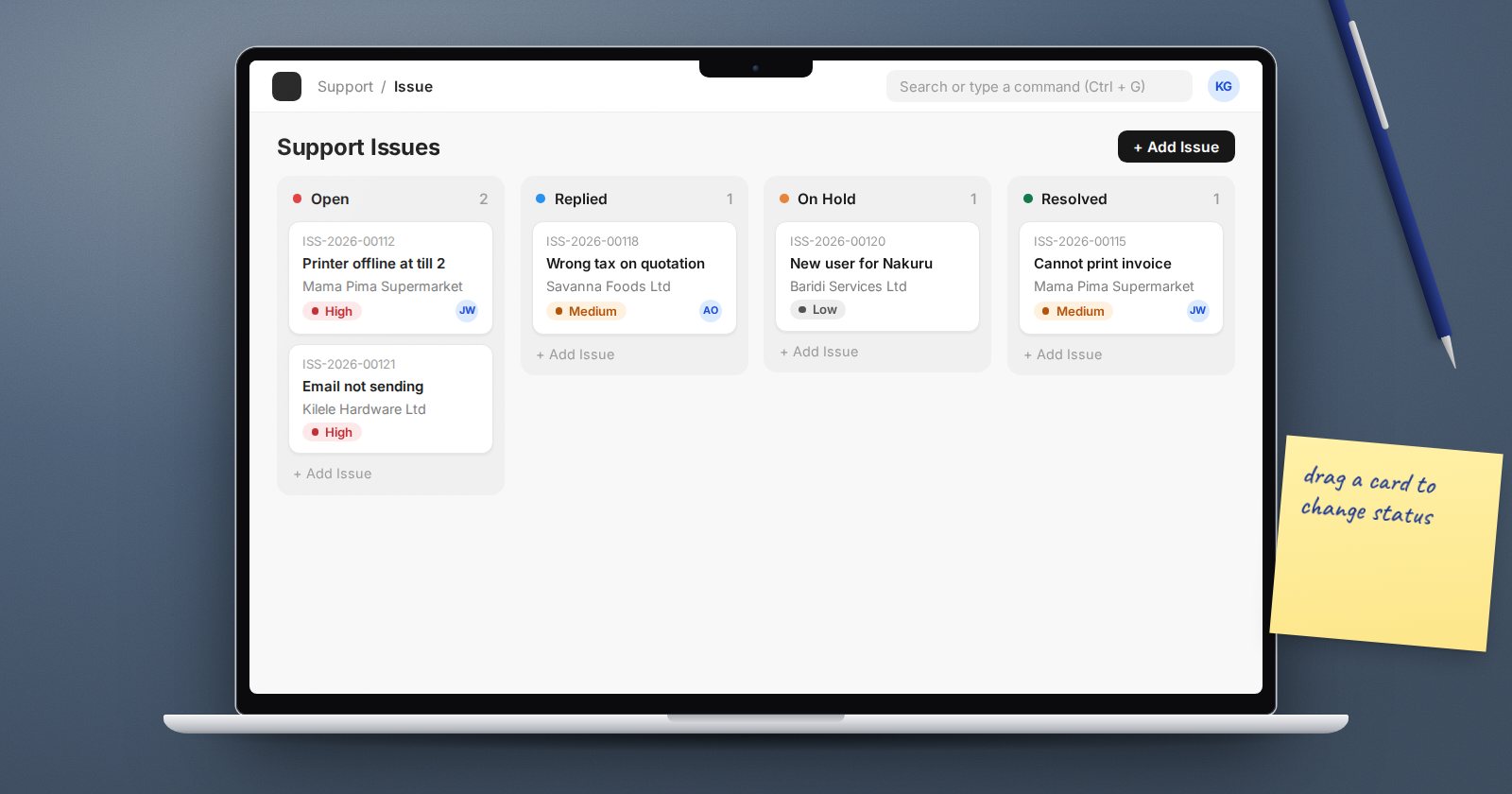
A support team that tracks tickets in a spreadsheet usually does so for one reason: they want to see the work as columns and drag it along. ERPNext already does this. Any list with a Select field can be shown as a Kanban board, and moving a card updates the record itself.
How a board is built
A Kanban Board has three parts that matter:
- Reference Document Type - the DocType whose records become cards, such as Issue or Task.
- Columns based on - a Select field on that DocType. Each option becomes a column.
- Filters - saved filters, so a board can show only one team's or one project's records.
Columns are copied from the field's options when the board is created. If you later add an option to the field, add the column on the board as well.
Create one in two minutes
- Open the list you want, for example the Issue list.
- Switch the view to Kanban from the view selector at the top of the list.
- Choose to create a new board, give it a Kanban Board Name and pick the field in Columns based on. For Issue that is
status, giving the columns Open, Replied, On Hold, Resolved and Closed. - Apply any list filters you want, then use Save filters from the board's menu so they stick.
If the DocType has no Select field, the dialog tells you so and offers Customize Form. Add a Custom Field of type Select, such as "Stage" with options "To Do", "In Progress", "Waiting on Customer" and "Done", then come back and create the board.
What happens when you drag a card
Dragging a card from one column to another does not only move a picture. ERPNext sets the board's field on that record to the new column value and saves the document. That has three consequences:
- The user needs write permission on the DocType. Read-only users can view the board but cannot move cards.
- All the normal save rules run: mandatory fields, validations in the DocType's controller, Server Scripts on Before Save, and so on. If a rule fails, the card does not move.
- The change is saved like any other edit, so with Track Changes on (as it is for Issue) the timeline shows who moved what.
This is why a Kanban board is safe to give to a team. It cannot be used to skip a rule the form would have enforced.
Make the cards useful
Open Kanban Settings from the board's menu to choose which fields show on each card and whether to show their labels. Pick two or three fields that help someone decide what to do next: the customer, the priority, the due date. More than that and the board becomes a wall of text.
Columns can also be given a colour and archived. Archive columns nobody works in, such as Closed, so the board shows only active work. Archived columns can be restored from the Archived Columns list on the board.
Private and shared boards
A board has a Private checkbox. A private board appears only for the user who created it; everyone else sees only public boards. Boards on Note and ToDo are private by default, which suits a personal to-do board. A team board should stay public so everyone works from the same view.
Good uses in a typical company
- Support desk: Issue by status, filtered to one support team.
- Projects: Task by status, filtered to one project, for the weekly stand-up.
- Sales follow-up: a custom "Follow-up Stage" Select field on Opportunity, filtered to one salesperson.
- Internal requests: a small custom DocType for IT or maintenance requests with a "Stage" field.
Mistakes to avoid
- Using a field that code also sets. Some status fields are calculated by ERPNext. A Sales Order's status, for example, is set by the system from deliveries and billing. Dragging such cards gives confusing results. Use a field people own, or add your own Select field.
- Too many columns. Five or six is the practical limit on a laptop screen.
- No filters. A board showing every record since go-live is slow and useless. Filter to open work.
Try it
- On a test site, create a board on Issue using
status. - Drag an issue to Resolved and check its timeline.
- Make a mandatory custom field that depends on the status, then try the drag again and watch the save rule stop it.
Kanban boards, list views and saved filters are part of ERPNext Administration Without Code.
