
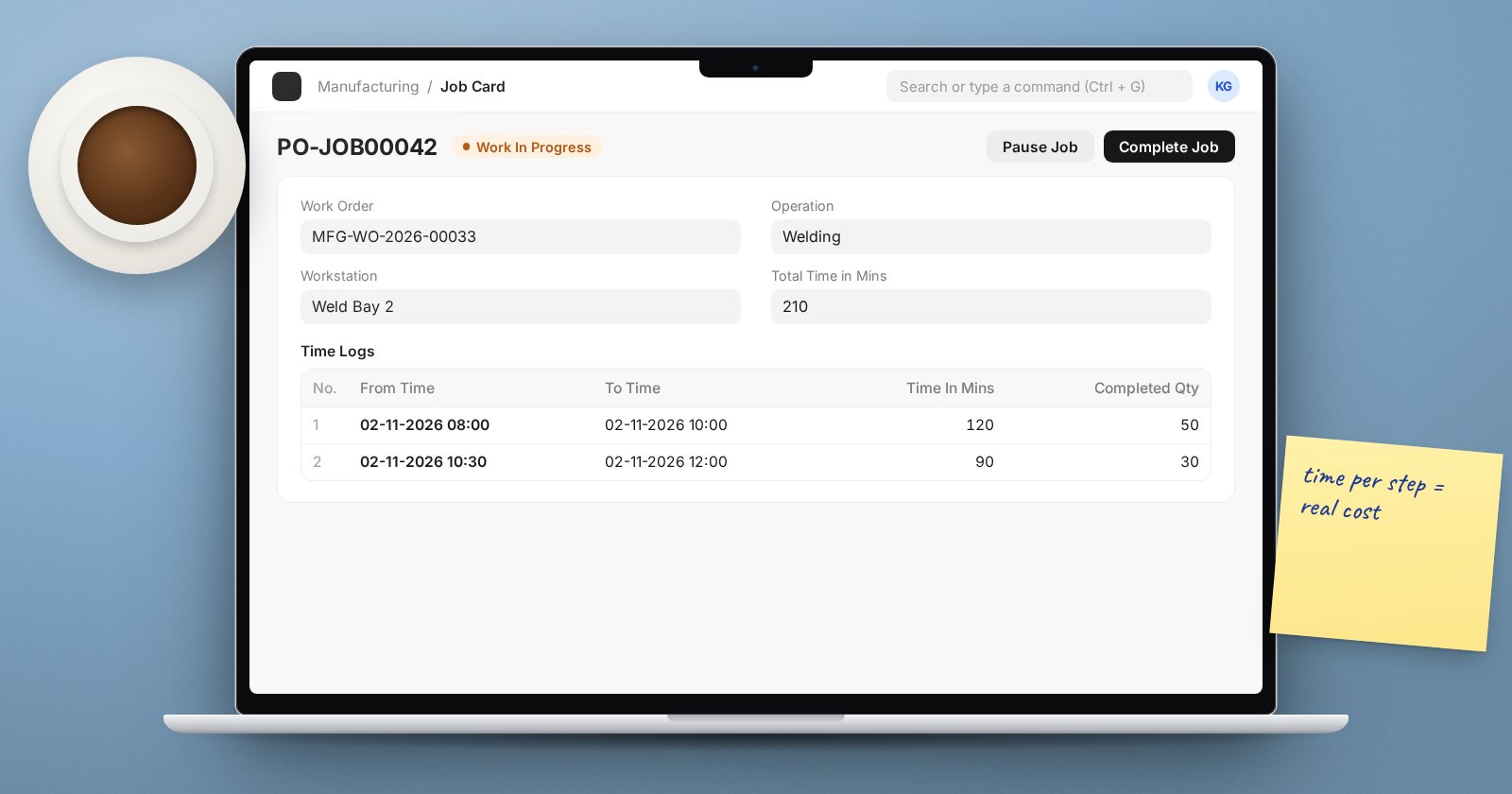
Materials are only part of what a product costs. Cutting, welding, mixing, packing: each step takes time on a machine and from people. If ERPNext only tracks materials, your product costs are too low and you cannot see where the floor loses time. Operations, Workstations and Job Cards close that gap.
The three pieces
- Operation: a named step, such as Cutting, Welding or Packing.
- Workstation: where the step happens, a machine or a work area. It has a Net Hour Rate (what an hour there costs), Working Hours, and a Job Capacity for how many jobs it can run at once.
- Job Card: one operation for one Work Order. It records who worked, when, and how much they completed.
Step 1: Set up workstations
Create a Workstation for each machine or area you want to cost separately. Fill in:
- Net Hour Rate: the cost of running it for an hour. The Operating Components Cost table lets you build this from parts such as electricity, labour and depreciation; agree the figures with your accountant.
- Working Hours and a Holiday List, if you plan capacity.
Start with a few workstations. You can always split them later.
Step 2: Add operations to the BOM
On the BOM, tick With Operations and add rows to Operations: the Operation, the Workstation and the Operation Time in minutes for the BOM's output quantity. ERPNext multiplies the hour rate by the time to give each operation's cost, and the BOM's total cost now includes operating cost.
Time the operations on the floor before entering them. A stopwatch beats a guess.
Step 3: Work Orders create Job Cards
When you submit a Work Order whose BOM has operations, ERPNext creates a Job Card for each operation, showing the Qty To Manufacture, the operation and the workstation. Unless capacity planning is switched off in Manufacturing Settings, ERPNext also schedules expected start and end times based on workstation availability.
Step 4: Record the work
The operator or supervisor opens the job card and uses the action buttons:
- Start Job when work begins. ERPNext starts a time log, asking which employee is working if none is set.
- Pause Job and Resume Job for breaks or interruptions.
- Complete Job at the end, entering the quantity completed.
These build the Time Logs table. The Total Completed Qty and Total Time in Mins fill in from the logs.
Step 5: Submit the Job Card
ERPNext checks a few things before it lets a job card be submitted:
- There must be time logs. With Enforce Time Logs on in Manufacturing Settings, every log also needs a from and to time.
- The completed quantity (plus any process loss and pending quantity) must equal the job card's Qty To Manufacture.
- A job card that is paused cannot be submitted until it is resumed and completed.
Once all job cards are done, finish the Work Order as usual. The actual time recorded drives actual operating cost.
Materials against job cards
By default materials are transferred against the Work Order. If each operation draws its own materials, set Transfer Material Against to Job Card on the BOM, so materials are issued per step.
Reading the results
- Job Card Summary: job cards by status, workstation and time.
- BOM Operations Time and Downtime Analysis: where time goes and where it is lost.
Compare planned operation time on the BOM with actual time on job cards. Large gaps mean either the BOM time is wrong or the floor has a problem worth looking at.
Try it
- Create two workstations with hour rates.
- Add two operations to a test BOM, tick With Operations and submit.
- Submit a Work Order and open the job cards it creates.
- Start, pause, resume and complete one job and read the time logs.
Shop floor control is introduced in Manufacturing Essentials, and operating costs and capacity in Production Planning & Costing.
