
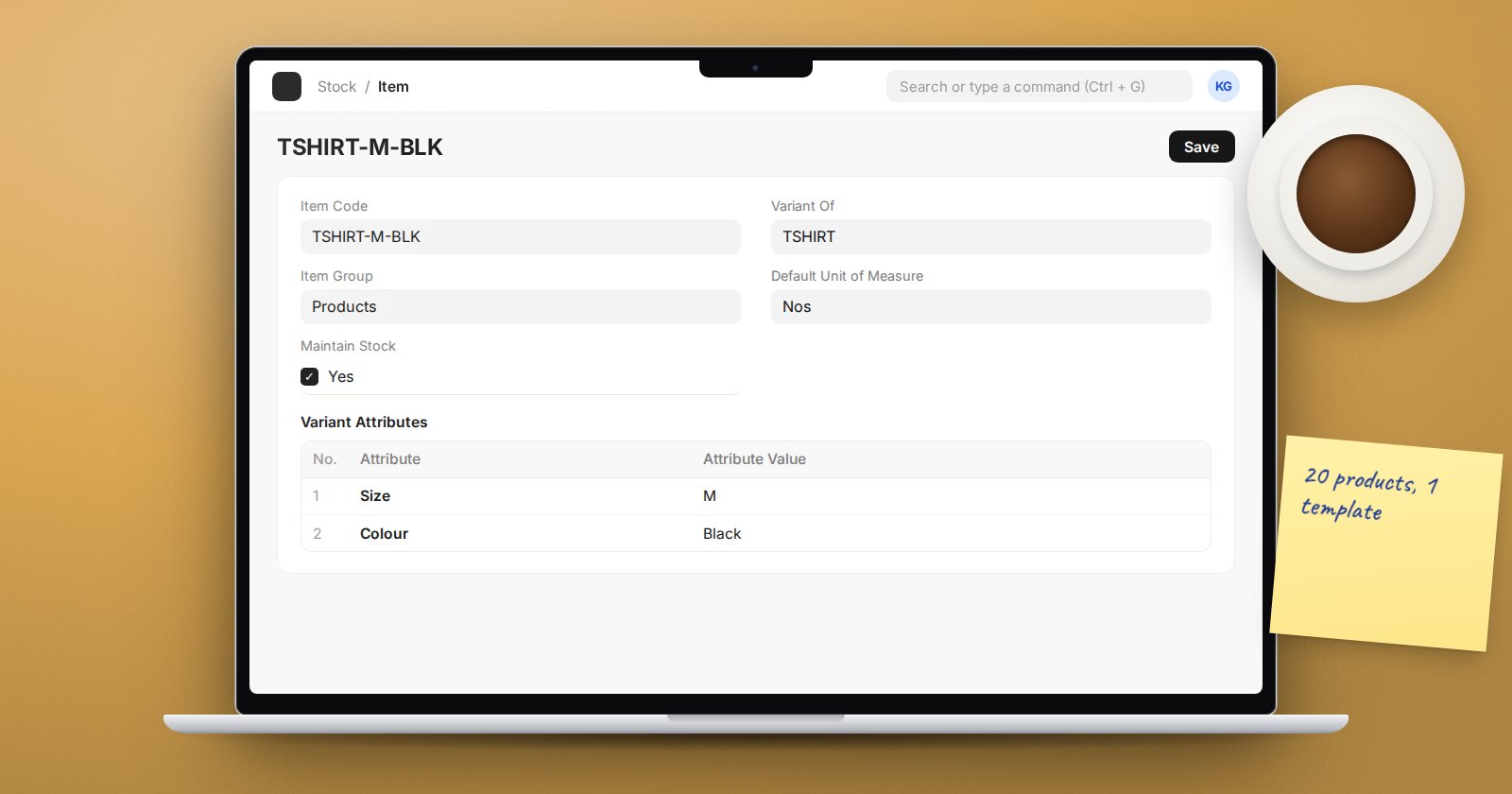
A T-shirt in four sizes and five colours is twenty products. You need to count, price and sell each one separately, but you do not want to set up twenty items by hand or keep twenty descriptions in step. ERPNext solves this with an item template and its variants.
How templates and variants work
The template holds everything the variants share: item group, unit of measure, description, accounts, taxes. Each variant is a real item with its own item code and its own stock, created from the template plus a set of attribute values such as Size = M and Colour = Blue.
You never buy, stock or sell the template itself. If you try to add a template to a transaction, ERPNext tells you it is a template and asks you to pick one of its variants.
Step 1: Create the attributes
Search for Item Attribute and create one per dimension:
- Size: add values S, M, L, XL. Give each value an Abbreviation, such as S, M, L, XL.
- Colour: add Blue, Black, White with abbreviations BLU, BLK, WHT.
For measurements that follow a range, such as length in centimetres, tick Numeric Values and set From Range, To Range and Increment instead of listing every value.
Abbreviations matter: ERPNext builds each variant's item code from the template code plus the abbreviations, joined with hyphens. A template TSHIRT with M and BLU becomes TSHIRT-M-BLU. Short, consistent abbreviations give readable codes.
Step 2: Create the template
- Create a new Item, for example
TSHIRT. - On the Details tab tick Has Variants.
- On the Variants tab, keep Variant Based On as Item Attribute and add the attributes Size and Colour to Variant Attributes.
- Fill in everything the variants will share, then save.
Step 3: Create the variants
On the saved template, open the Create menu:
- Single Variant lets you pick one combination.
- Multiple Variants lets you tick the sizes and colours you actually stock and creates all combinations in one go.
Only create the combinations you really sell. Twenty variants you never stock just clutter search results.
Keeping variants in step
When you edit the template and save, ERPNext copies selected fields down to its variants. Which fields are copied is controlled in Item Variant Settings (also reachable from the template's View menu). Leave per-variant fields such as barcodes and specific prices out of that list. If you do not want saves to update variants at all, tick Do not update variants on save.
Reorder levels set on the template are also used for variants that have none of their own.
Pricing variants
Each variant is its own item, so it can have its own Item Price. If all sizes cost the same, a Pricing Rule on the template's item group or the items themselves can save typing. Check prices on a test quotation before go-live.
When not to use variants
- If the "variants" differ in most of their details, they are separate items.
- If only the packaging differs (single unit or a box of 12), use units of measure with conversion factors instead.
Try it
- Create attributes Size (S, M, L) and Colour (Blue, Black).
- Create a template, tick Has Variants and add both attributes.
- Use Create > Multiple Variants to make all six.
- Check the codes, then open the Variant Details Report from the template's View menu.
Clean item masters, units of measure and pricing are the subject of the Customers, Suppliers & Items course.
