
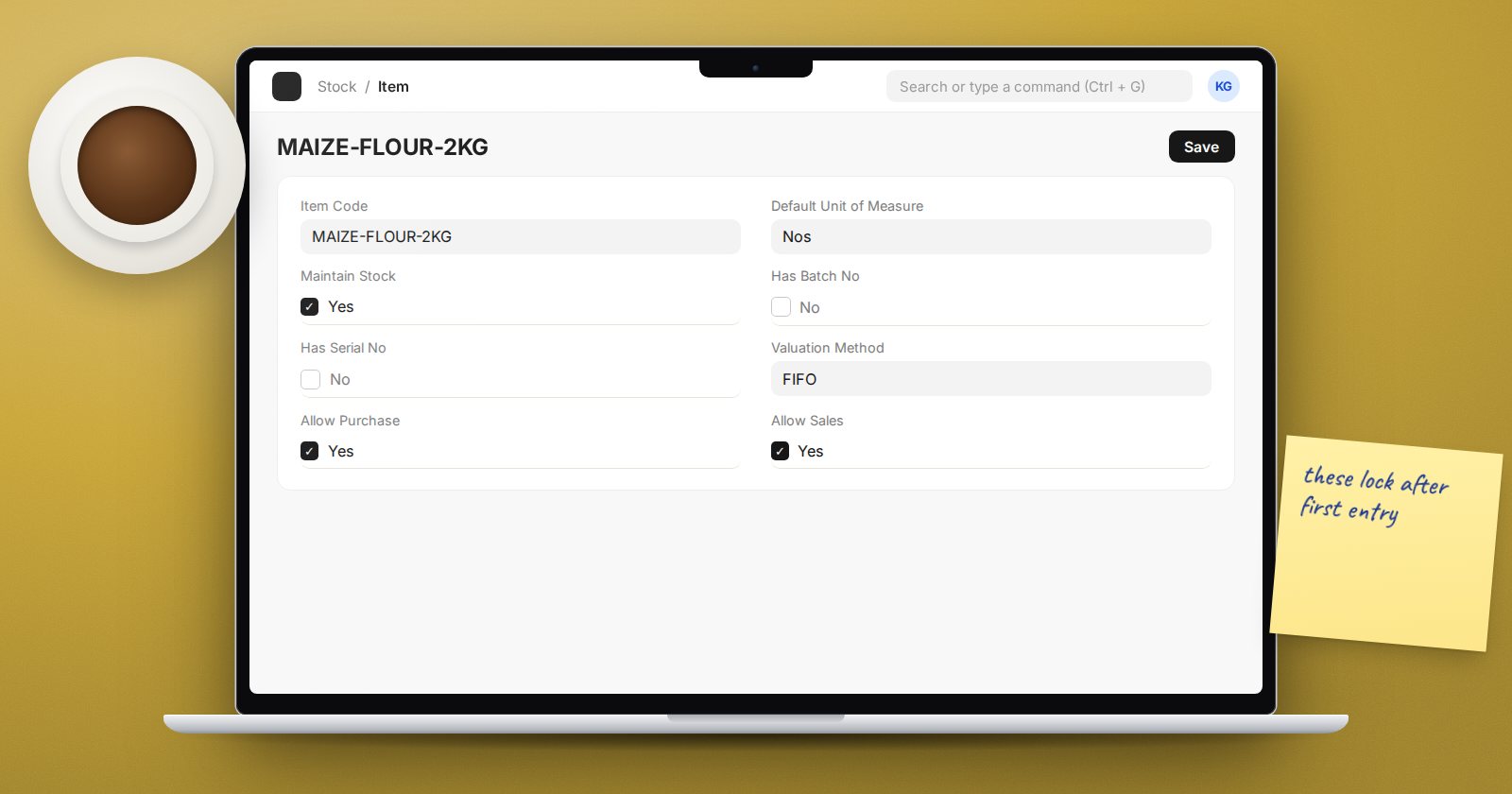
A new item takes two minutes to create, and most people fill in the code, the name and the price and click Save. The tick boxes they skip decide how ERPNext treats that item for the rest of its life: whether it is counted, how it is valued, whether it needs a batch or a serial number. Some of them cannot be changed once the item has been used.
The settings that lock after the first transaction
ERPNext refuses to change four fields once submitted documents exist for the item. The message reads "As there are existing submitted transactions against item ..., you can not change the value of ..." and names the field. The four are:
- Maintain Stock (Details tab). Ticked, every receipt and delivery writes to the stock ledger. Unticked, the item is a service or a non-stock purchase: delivery charges, consultancy, airtime. The field's own help says it plainly: keep it unchecked for non-stock or service items.
- Has Batch No (Inventory tab). For goods tracked by lot, such as drugs, food or chemicals.
- Has Serial No (Inventory tab). For goods tracked one by one, such as phones, motorbikes or meters. ERPNext will not allow it on a non-stock item.
- Valuation Method (Inventory tab). FIFO, Moving Average or LIFO. Left blank, the item uses the Default Valuation Method in Stock Settings. The one change ERPNext allows later is to Moving Average.
Get these four right before the first Purchase Receipt. If you get one wrong after transactions exist, the clean fix is usually a new item and disabling the old one.
Default Unit of Measure
Default Unit of Measure is the unit stock is counted and valued in. Choose the smallest unit you sell or issue, usually pieces, kilograms or litres. Once the stock ledger holds entries in one UOM, ERPNext will not let you change it directly and tells you to create a new item. Buying in cartons is handled on the UOM tab with conversion factors, not by making the carton the stock unit.
Opening Stock and Standard Selling Rate
Two fields appear only while the item is new:
- Opening Stock, with Valuation Rate, makes ERPNext post an opening Stock Entry when you save. It goes to the item's default warehouse, the Stock Settings default warehouse, or the company's "Stores" warehouse. Handy for a handful of items; for a full migration, a Stock Reconciliation gives you more control.
- Standard Selling Rate creates an Item Price on save, so the item is ready to sell.
Settings that shape buying and selling
- Allow Purchase and Allow Sales (Details tab). Untick Allow Sales on raw materials so nobody can invoice them by mistake.
- Is Fixed Asset. A fixed asset item must be a non-stock item and needs an Asset Category. Laptops for staff go here, not into the stock warehouse.
- Include Item In Manufacturing (Manufacturing tab). Leave on for raw materials in a BOM; untick for service lines such as "washing" that appear in manufacturing but are not stock.
- Max Discount (%) on the Sales tab. ERPNext stops any sales document whose line discount exceeds it, with "Maximum discount for Item ... is ...%".
- Shelf Life In Days and Has Expiry Date for batched goods with a shelf life.
Ending an item's life
Do not delete an item that has history. Two fields retire it safely:
- End of Life (Inventory tab), a date after which the item cannot be used in transactions or manufacturing.
- Disabled, which blocks it straight away.
Both keep the history intact for reports.
A two-minute check before saving
- Is this a physical thing we count? Then Maintain Stock on; otherwise off.
- Do we need to trace it by lot or by unit? Set Has Batch No or Has Serial No now.
- Is the Default Unit of Measure the smallest unit we sell or issue?
- Is the Item Group right, so group defaults and reports work?
- Should it be bought, sold, or both?
Put this check in your item creation procedure and limit who can create items. Most stock problems that surface months later started as one unchecked box on day one. Setting up items, customers and suppliers properly is the whole subject of the Customers, Suppliers & Items course, and stock control continues in Inventory Essentials.
