
An ERPNext system holds a lot of personal data: customer contacts, supplier representatives, employee records, salaries, ID numbers and bank details. Data protection is not only a legal question; it is a set of everyday practices that keep that information safe. This article covers the practical basics. It is not legal advice; for your obligations, speak to a qualified adviser.
The law, briefly
In Kenya, personal data is governed by the Data Protection Act, 2019, overseen by the Office of the Data Protection Commissioner. As of 2026, the Act requires a data controller to notify the Data Commissioner of a qualifying personal data breach within 72 hours of becoming aware of it. Other countries in the region have their own laws. Check the current official text for the countries you operate in.
Whatever the jurisdiction, the same practical ideas come up again and again: collect only what you need, protect it, limit who sees it, keep it only as long as necessary, and be ready to act when something goes wrong.
Step 1: Know what you hold
List where personal data lives in ERPNext: Customer and Contact records, Supplier contacts, Employee records, payroll, attachments such as ID copies and contracts, and any custom fields you added. For each, note why you need it and who uses it.
Custom fields deserve a second look. A field added years ago "just in case" may be collecting data nobody needs.
Step 2: Limit who can see it
- Give HR and payroll data to HR and payroll roles only. Use roles and user permissions so a store clerk cannot open employee records.
- Review access every quarter, and disable leavers immediately.
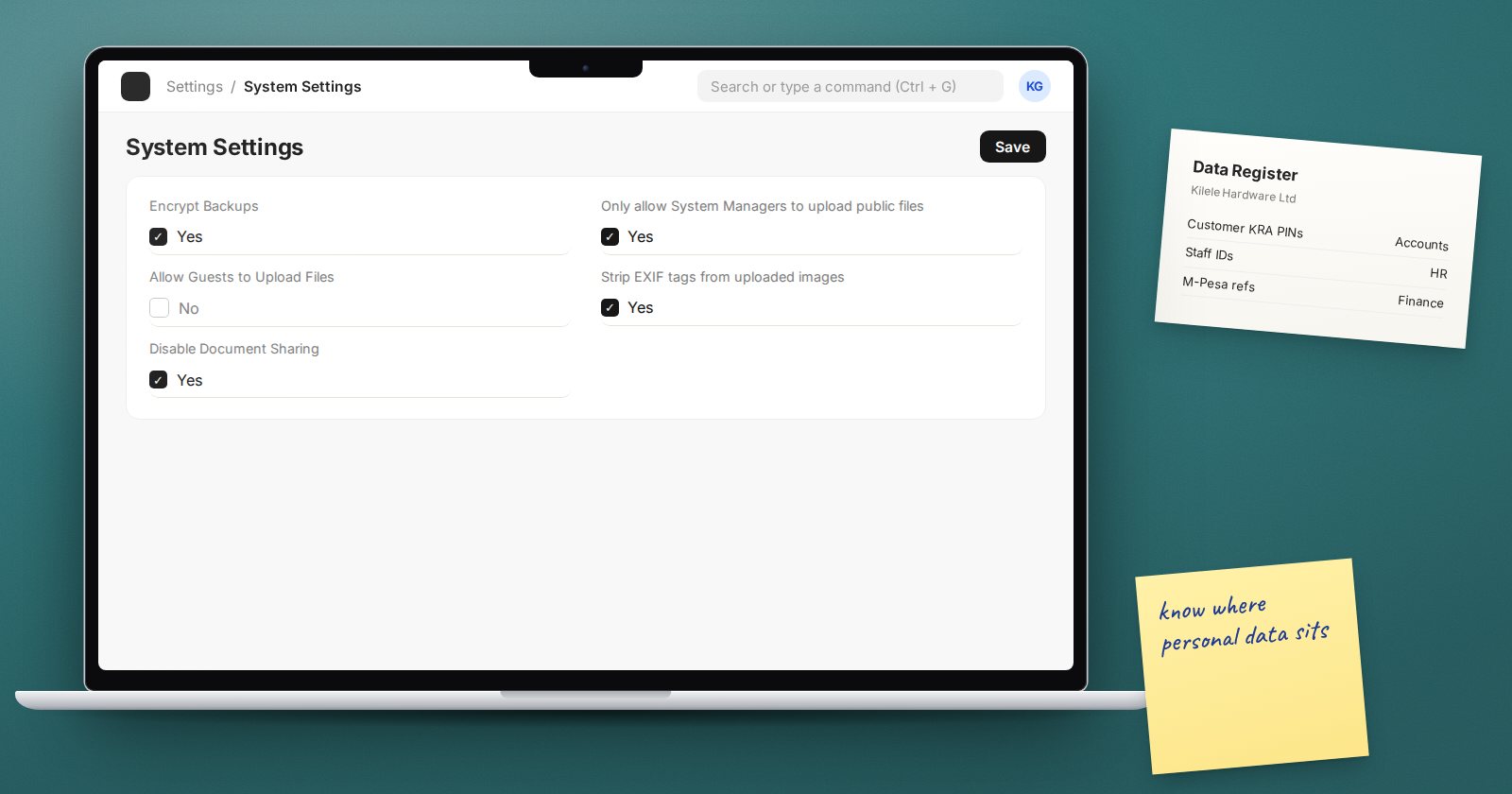
- Consider Disable Document Sharing in System Settings if documents are being shared in ways that bypass roles.
Step 3: Use private files
Attachments uploaded in ERPNext are private by default, unless the DocType is set to make attachments public. Private files are only served to logged-in users with access to the document. Keep it that way for anything personal. Related System Settings:
- Only allow System Managers to upload public files - reduces accidental public uploads.
- Allow Guests to Upload Files - off by default; leave it off unless a website form needs it.
- Strip EXIF tags from uploaded images - on by default; removes hidden metadata such as location from photos.
Step 4: Protect copies
Backups contain every record. Use Encrypt Backups in System Settings, store the key separately, and restrict access to the backup storage. Treat exports the same way: a spreadsheet of employee salaries emailed around is a data leak waiting to happen. The Access Log records exports and downloads if you need to check.
Step 5: Respond to requests
People may ask what data you hold about them, or ask for it to be corrected or deleted. Frappe includes Personal Data Download Request and Personal Data Deletion Request DocTypes, designed mainly for website users. For staff and business contacts, agree an internal procedure: who receives requests, who checks the identity of the person asking, and who answers.
Step 6: Be ready for a breach
Write down now, while things are calm:
- who decides whether an incident is a personal data breach
- how you will find out what was affected (Activity Log, Access Log, Version history)
- who notifies the regulator and affected people, and within what time
- how you will contain it: disable users, end all sessions, rotate API keys
A deadline measured in hours leaves no time to work out the process from scratch.
Data protection checklist
- [ ] Personal data in ERPNext listed, with purpose and owner
- [ ] Unneeded custom fields retired
- [ ] HR and payroll data limited to the right roles
- [ ] Attachments kept private; guest uploads off
- [ ] Backups encrypted, key stored separately
- [ ] Procedure for access and deletion requests
- [ ] Breach response plan written, with notification timing
- [ ] Legal obligations confirmed with an adviser
For consultants, building these controls into an implementation is part of our ERPNext Implementation Consultant course.
