
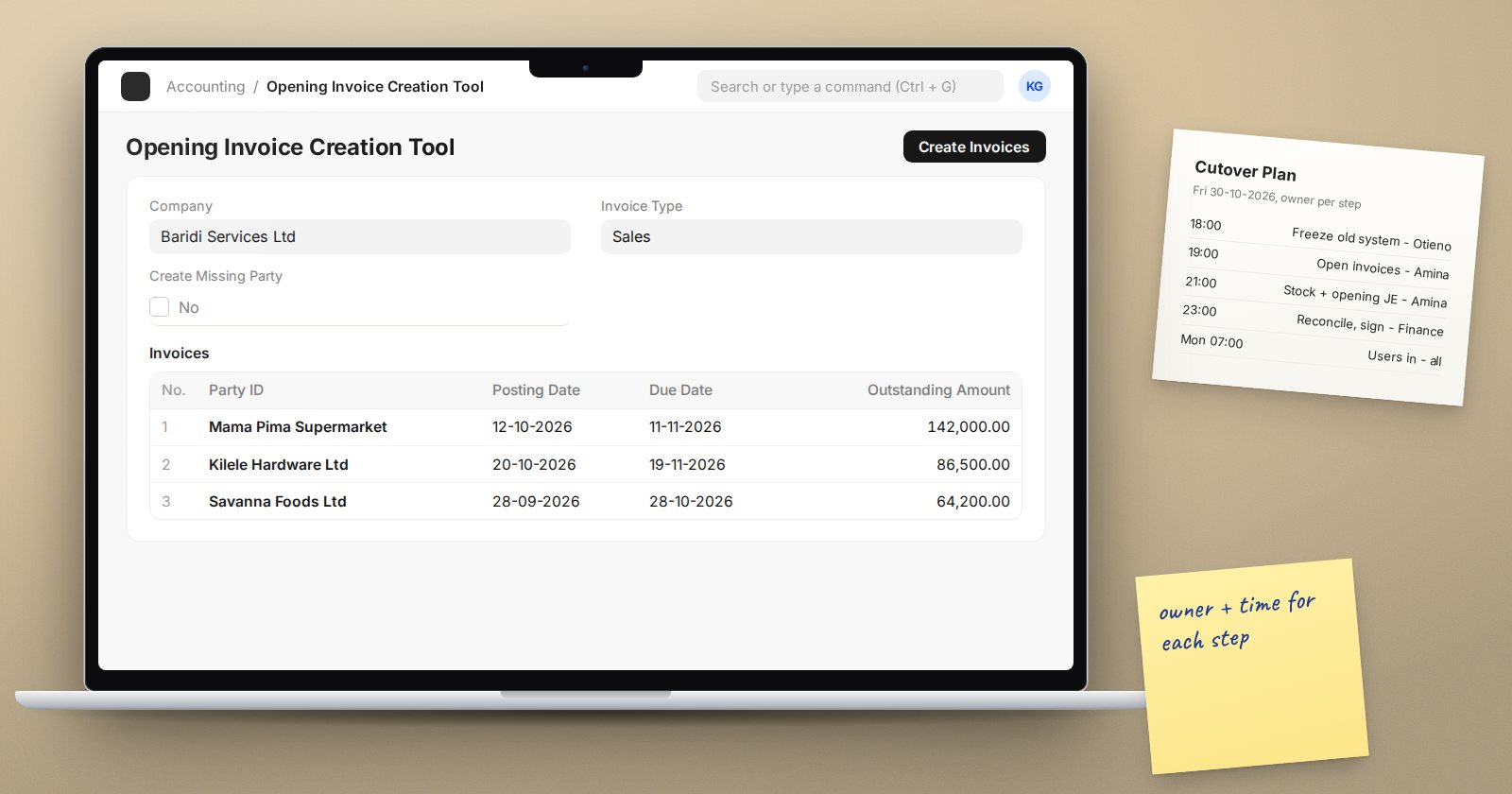
Cutover is the short, intense period when the business stops working in the old system and starts working in ERPNext. It usually happens over a weekend or a few days around a month end. A written cutover plan turns this from a scramble into a sequence of known steps, each with an owner and a time.
This article is about the plan itself. Deciding whether you are ready to go live is a separate step that should happen before cutover begins.
What a cutover plan contains
A cutover plan is a table, not an essay. Each row is one task with:
- A number, so tasks can be referred to quickly
- The task description
- The owner, a single named person
- The planned start and finish time
- Dependencies, meaning which tasks must finish first
- A verification step: how you know it was done correctly
- Status and actual finish time, filled in on the day
The typical sequence
Every business differs, but most cutovers follow this shape.
Before the freeze
- Confirm all master data is loaded and approved.
- Confirm users, roles and print formats are final.
- Agree the cutover date for balances, normally a month end.
- Communicate the freeze time to every department, customers if needed, and suppliers who send electronic documents.
The freeze
- Stop new entries in the old system at the agreed time. Where possible, make it read-only.
- Record the last document numbers used in the old system for invoices, receipts and payments.
- Do a physical stock count, or confirm stock figures that will be used for opening stock.
Extract and load
- Export final receivables and payables, open invoice by open invoice.
- Load open customer and supplier invoices with the Opening Invoice Creation Tool.
- Load opening stock with a Stock Reconciliation using the Opening Stock purpose.
- Load remaining ledger balances with an opening journal entry.
- Load open orders, if they were in scope, using the agreed method.
Reconcile
- Compare the trial balance at the cutover date with the old trial balance.
- Compare receivable and payable totals by party.
- Compare stock quantity and value by warehouse.
- Confirm the Temporary Opening account is zero.
- Get finance to sign each reconciliation.
Open for business
- Announce that ERPNext is live and the old system is closed for new entries.
- Start the hypercare support schedule.
Build in checkpoints
Insert clear checkpoints after the freeze, after the loads and after reconciliation. At each checkpoint the project lead and the finance lead confirm the previous block is complete before continuing. If a checkpoint fails, you fix it there rather than discovering it on Monday morning.
Plan a fallback
Decide in advance what happens if cutover cannot finish in time. Usually the fallback is simple: the old system stays in use for one more period and cutover moves to the next month end. Write down who makes that call and by when. Knowing the fallback exists takes pressure off the team and leads to better decisions.
Rehearse it
Run the full plan at least once on a test copy, using real exported data and timing each step. The rehearsal will expose missing steps, slow imports and unclear ownership. Update the plan after the rehearsal, not during the real cutover.
Common cutover mistakes
- No clear freeze time, so the old system keeps changing
- Loading balances before the old period is truly final
- One person owning too many critical tasks
- Skipping reconciliation to save time
- No agreed fallback
Checklist
- Cutover plan written as a task table with owners and times
- Freeze time communicated to all departments
- Last old-system document numbers recorded
- Load order matches the rehearsal
- Checkpoints after freeze, load and reconciliation
- Fallback and decision owner agreed
- Plan rehearsed and updated
Cutover planning is covered within the ERPNext Implementation Consultant course, alongside the data and testing work that leads up to it.
