
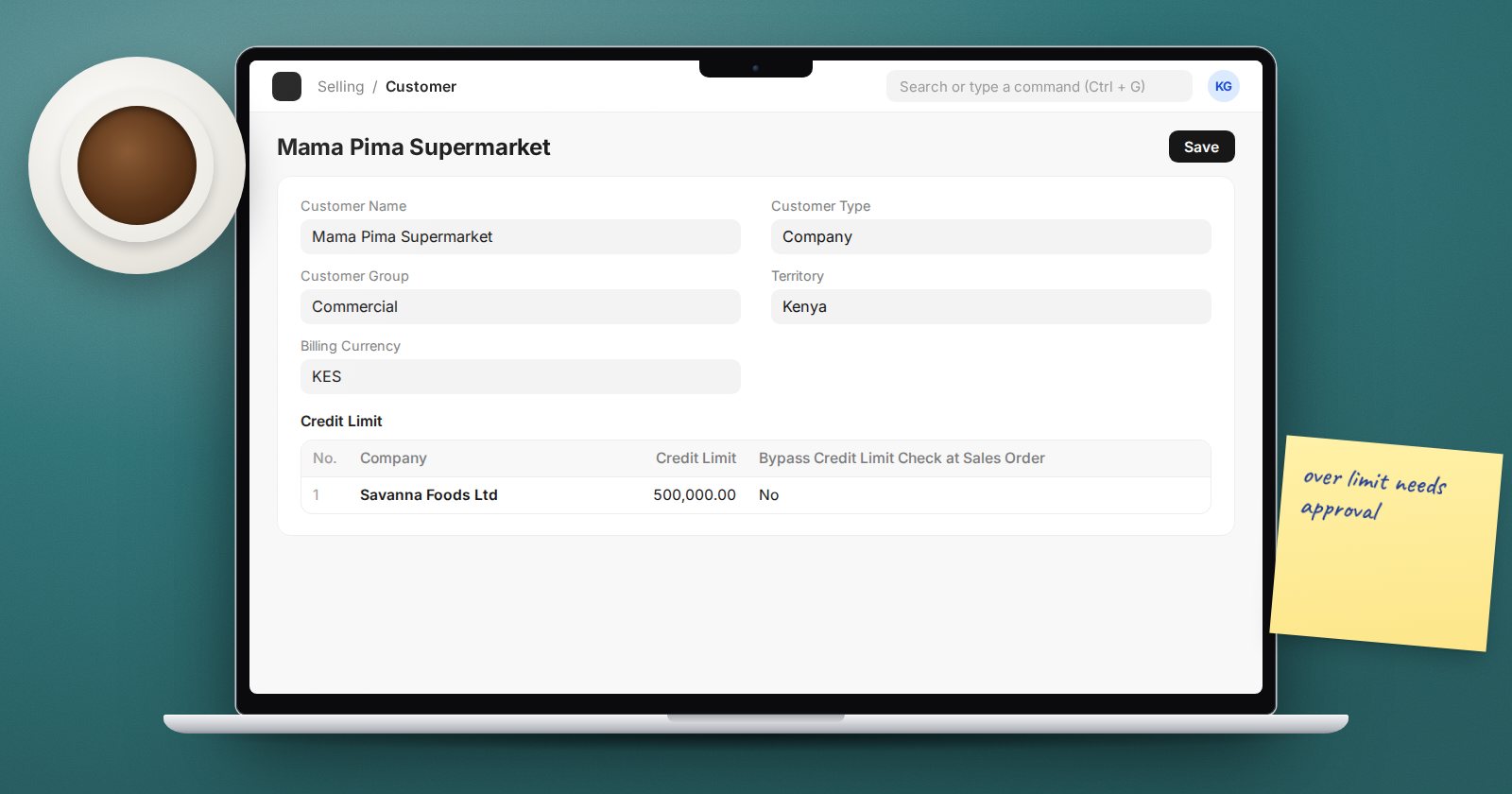
Selling on credit grows the business until a customer stops paying. A credit limit is the simple rule that protects you: this customer may owe us up to this amount, and no more without someone senior agreeing. ERPNext applies the rule automatically if you set it up.
Where to set the limit
On the Customer, open the Accounting tab and find Credit Limit and Payment Terms. In the Credit Limit table add a row with the Company and the Credit Limit amount. If you run several companies in one ERPNext, each can give the same customer a different limit.
If a customer has no limit of their own, ERPNext looks at their Customer Group, which has the same table, and then at the Credit Limit on the Company. That lets you set a default for, say, all retail customers and only set individual limits for the exceptions.
What counts towards the limit
ERPNext does not just look at unpaid invoices. A customer's exposure is:
- the outstanding balance in the accounts (unpaid invoices less payments),
- plus submitted Sales Orders not yet billed,
- plus Delivery Notes not yet billed.
That is the right way to think about it. Goods you have promised or delivered but not yet invoiced are still credit you have extended.
Where it is checked
The check runs when these documents are submitted:
- Sales Order
- Delivery Note (for lines not already covered by an order or invoice)
- Sales Invoice
If the new document would take the customer over the limit, ERPNext stops it and shows the outstanding and limit, with a list of users who can extend credit.
Re-opening a held or closed Sales Order checks the limit again.
Bypassing the check at Sales Order
On each Credit Limit row there is Bypass Credit Limit Check at Sales Order. Ticked, ERPNext does not check at the order stage, but still checks when you deliver or invoice. This suits businesses that take orders freely and control credit at despatch, when goods actually leave.
Who can approve over-limit sales
In Accounts Settings, Role allowed to bypass credit limit names the role that can submit documents over the limit. Give it to your credit controller or finance manager, not to the sales team. Others see the block and are told who to contact.
Choosing limits sensibly
A common approach for a new account is to start low, based on expected monthly purchases and your payment terms, and raise the limit after a period of on-time payment. For example, a customer buying around 200,000 a month on 30-day terms needs a limit somewhat above 200,000 to keep trading normally, plus a margin for timing.
Review limits regularly. The Customer Credit Balance report shows each customer's limit, outstanding amount and remaining credit in one list.
Common mistakes
- Setting the limit but giving everyone the bypass role, so it never blocks anything.
- Forgetting the Customer Group or Company fallback, then wondering why a customer with no limit of their own is being blocked.
- Treating the block as a system fault. It is the control doing its job: collect payment or get approval.
Try it
- Set a small credit limit on a test customer.
- Submit a Sales Order within the limit, then another that exceeds it, and read the message.
- Tick Bypass Credit Limit Check at Sales Order and repeat. The order goes through; now try a Delivery Note.
- Check the customer in the Customer Credit Balance report.
Selling correctly from quotation to payment is covered in the Sales Essentials course, and managing a sales team and its pricing in CRM & Sales Management.
