
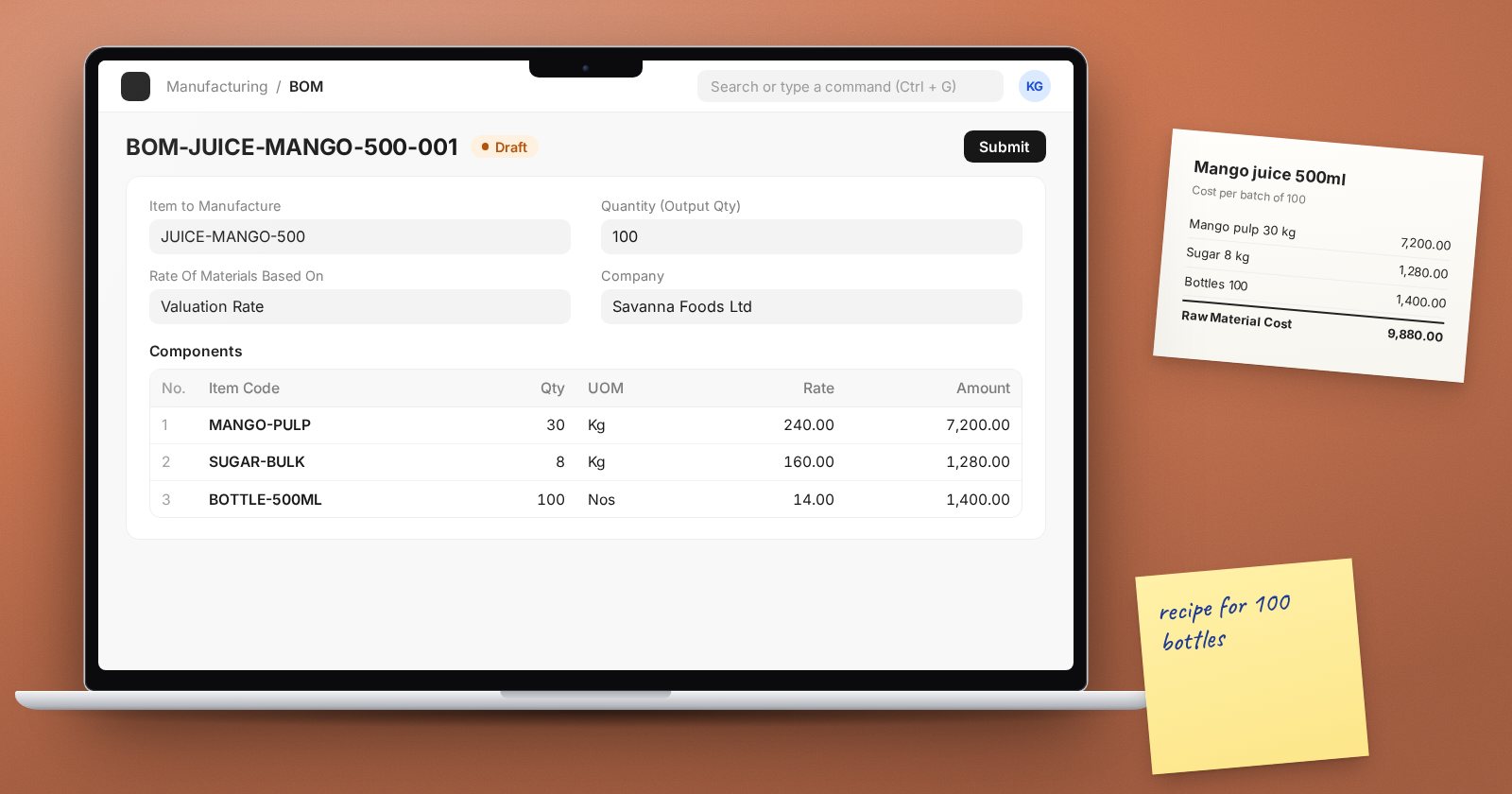
A Bill of Materials (BOM) is the recipe for something you make: which materials, how much of each, and optionally which operations, to produce a given quantity of a finished item. Every Work Order, production plan and product cost in ERPNext starts from it, so a careless BOM spreads errors everywhere. Here is how to build a good first one.
Before you start
- The finished item and every component must exist as Items, with correct stock units.
- Decide the batch you think in. A bakery may think in 100 loaves; a furniture maker in one table.
- Know your real usage, including normal waste. Weigh it, do not guess.
Step 1: Create the BOM
- Create a new BOM and set Item to Manufacture.
- Set Quantity (Output Qty): how much this recipe produces. If the recipe makes 100 loaves, enter 100 and list materials for 100 loaves. ERPNext scales them for any Work Order quantity.
- Set Rate Of Materials Based On: Valuation Rate, Last Purchase Rate or Price List. Valuation Rate is the usual choice because it matches how stock is valued.
Step 2: Add the components
In the Components table, add each raw material with its Qty and UOM for the output quantity. If the unit differs from the stock unit (for example grams in the recipe and kilograms in stock), ERPNext converts using the item's conversion factor; check it is set.
If a component is itself made in-house, for example a dough you make before baking, give that component its own BOM and select it in the row's BOM No. That makes it a sub-assembly, and you have a multi-level BOM.
ERPNext refuses a BOM with no raw materials, and it refuses a loop where an item ends up inside its own BOM.
Step 3: Operations, if you need them
Tick With Operations if you want to plan workstations and include labour and machine cost. Add rows to Operations with the Operation, the Workstation and the Operation Time in minutes. The workstation's hour rate turns time into operating cost.
Start without operations if you are new to manufacturing in ERPNext. Get materials right first; add operations once Work Orders run smoothly.
Step 4: Process loss
If some output is lost in every run, such as evaporation, trimming or testing, set % Process Loss. ERPNext then expects less finished output from the same materials, so the cost per good unit is correct.
Step 5: Save, review cost, submit
Save and check Raw Material Cost, Operating Cost and Total Cost. If the cost looks wrong, the cause is usually a missing valuation rate or a wrong unit. Fix it, then submit.
A submitted BOM marked Is Active and Is Default is the one ERPNext uses for new Work Orders of that item.
Changing a BOM later
A submitted BOM is locked. To change the recipe, use New Version to copy it, edit the copy, submit it and make it the default. Old Work Orders keep the BOM they were made with, so history stays correct.
To replace one sub-assembly BOM everywhere it is used, the BOM Update Tool has Replace. Its Update latest price in all BOMs refreshes costs; Update Cost on a single BOM does the same for one. Update BOM Cost Automatically in Manufacturing Settings keeps costs refreshed for you.
Reports to use
- BOM Explorer: the full multi-level tree for one BOM.
- BOM Stock Analysis: whether you have enough stock to build a given quantity.
- BOM Search: which BOMs use a particular item.
Try it
- Create a BOM for one product with an output quantity matching your normal batch.
- Add components with real measured quantities.
- Submit and compare the Total Cost with what you believe the product costs.
Setting up products and running production is covered in the Manufacturing Essentials course, and costing in depth in Production Planning & Costing.
