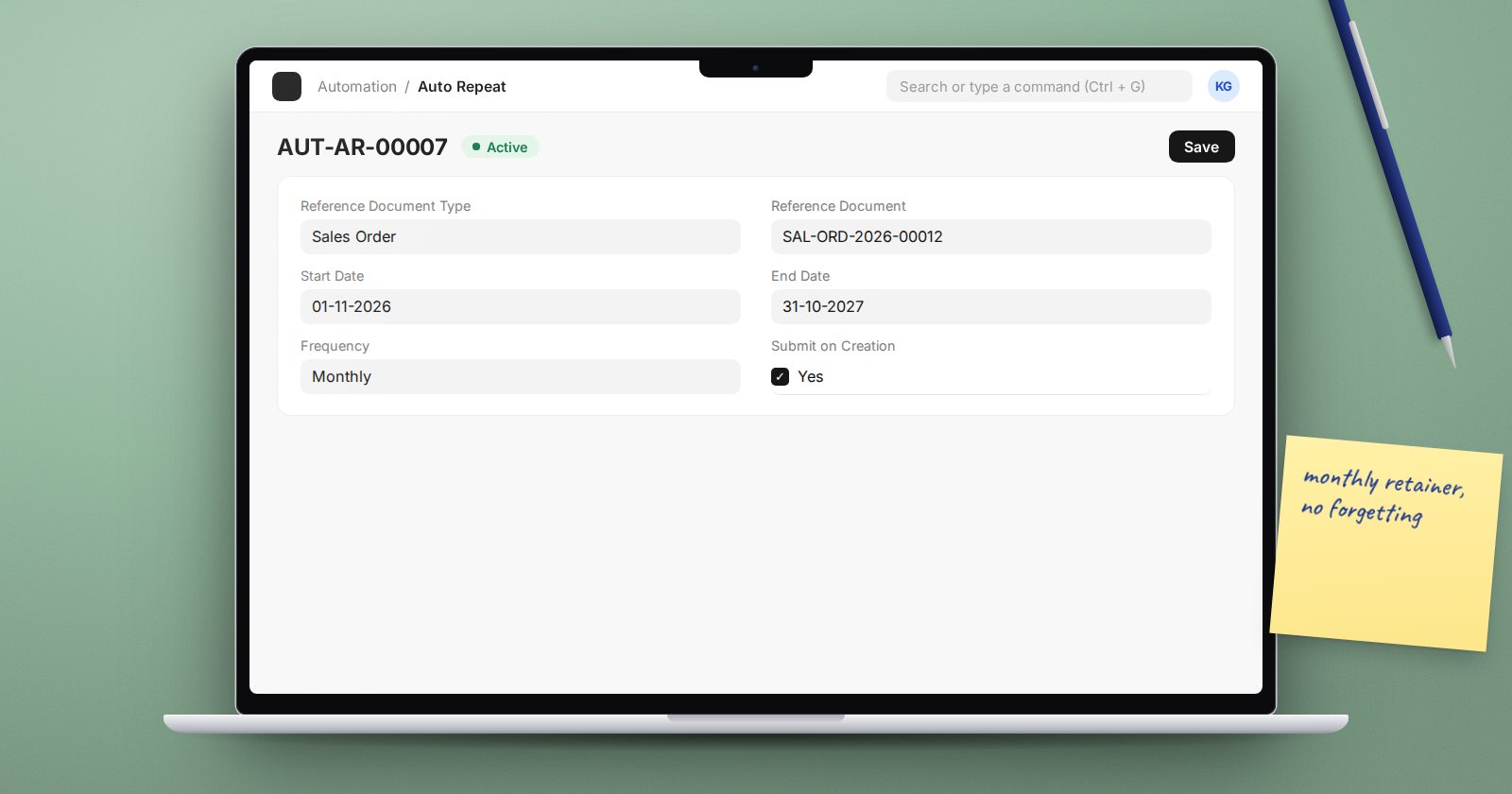
A monthly service contract, office rent charged to a tenant, a standing purchase order for cleaning supplies: someone creates the same document every period, and one month they forget. Auto Repeat creates the copy for you on schedule and can email it out.
How it works
An Auto Repeat record points at one existing document, the Reference Document. On each scheduled date ERPNext copies that document, adjusts its dates and saves the copy as a new draft, or submits it if you ask. The original stays as the template.
The job runs once a day in the background, as part of the daily maintenance jobs. The scheduler must be enabled for anything to happen.
Which documents can repeat
A DocType can only repeat if Allow Auto Repeat is ticked for it. Several ERPNext documents ship with it on, including Sales Order, Purchase Order, Quotation, Journal Entry and Payment Entry. For any other DocType, open Customize Form, select it and tick Allow Auto Repeat. Frappe then adds a read-only Auto Repeat link field so each copy shows which schedule created it.
When it is allowed, a Repeat item appears in the form's menu once the document is saved.
Setting up a schedule
From the reference document choose Repeat, or create a new Auto Repeat. The main fields:
- Reference Document Type and Reference Document - what to copy.
- Start Date and End Date - leave End Date blank to repeat until stopped.
- Frequency - Daily, Weekly, Fortnightly, Monthly, Quarterly, Half-yearly or Yearly.
- Repeat on Day or Repeat on Last Day of the Month - for monthly and longer frequencies.
- Repeat on Days - the weekdays to use for a weekly schedule.
- Submit on Creation - submit each copy automatically. Only allowed for submittable DocTypes.
- Assignee - users to assign each new document to, optionally with a separate copy per assignee.
- Notify by Email, Recipients, Template, Subject, Message and Print Format - send each copy by email with the chosen print attached. Get Contacts fills recipients from the document's contacts.
Next Schedule Date shows when the next copy will be made.
What gets copied
Each copy is a fresh document built from the reference. A few rules decide the details:
- Fields marked No Copy in the DocType are left blank, as when you duplicate by hand.
- Every mandatory Date field is set to the schedule date, so a Sales Order's transaction date matches the period.
- Naming series, remarks and the owner are carried over.
- ERPNext adjusts some documents in its own code. Sales Invoice, for example, clears the due date so payment terms recalculate.
Prices, taxes and quantities come from the reference document as it is today, not as it was when you set up the schedule. Change the reference and next month's copy changes too.
When something fails
If a copy cannot be saved, for example because a customer was disabled or an item price list no longer exists, ERPNext:
- writes the details to the Error Log,
- disables the Auto Repeat so it does not fail every day,
- emails the System Managers and the Auto Repeat's owner a link to the error.
Fix the cause, untick Disabled, and the schedule continues from its next date. Add a weekly look at the Auto Repeat list, filtered on Disabled, to your admin routine.
Good habits
- Draft first. Leave Submit on Creation off for the first two cycles and review the drafts before trusting it.
- Keep the reference clean. Treat the reference document as a template. Do not reuse it for one-off changes.
- Name the schedule clearly in the document's remarks, so people know why a copy appeared.
- Use End Date for contracts with a fixed term.
Try it
- On a test site, tick Allow Auto Repeat for a DocType that lacks it.
- Create a Daily Auto Repeat on a Sales Order with Notify by Email on.
- Disable the customer, wait for the daily job, and find the Error Log entry and the disabled schedule.
Scheduled automation is one of the tools we cover in ERPNext Administration Without Code.