
Sooner or later someone asks: who changed this customer's credit limit, who cancelled that invoice, who exported the payroll report? ERPNext keeps more history than most users realise. Knowing where each kind of record lives turns a long argument into a two-minute lookup.
Version history on documents
When a DocType has Track Changes turned on, every saved change creates a Version record: which fields changed, from what, to what, by whom and when. You see it in the document's timeline at the bottom of the form.
Several important ERPNext DocTypes have it on out of the box, including Sales Invoice, Journal Entry, Account and Company. For others, an administrator can turn it on in Customize Form by ticking Track Changes. Good candidates are master data where a quiet edit can cause damage: suppliers (especially bank details), customers (credit limits) and items (prices and accounts).
Tracking applies from the moment it is switched on. It does not recreate history from before.
Submitted documents: cancel and amend
Submitted transactions such as invoices cannot simply be edited. To change one, a user cancels it and creates an amended copy, named with a suffix like -1. The original stays in the system, cancelled. That chain is itself an audit trail.
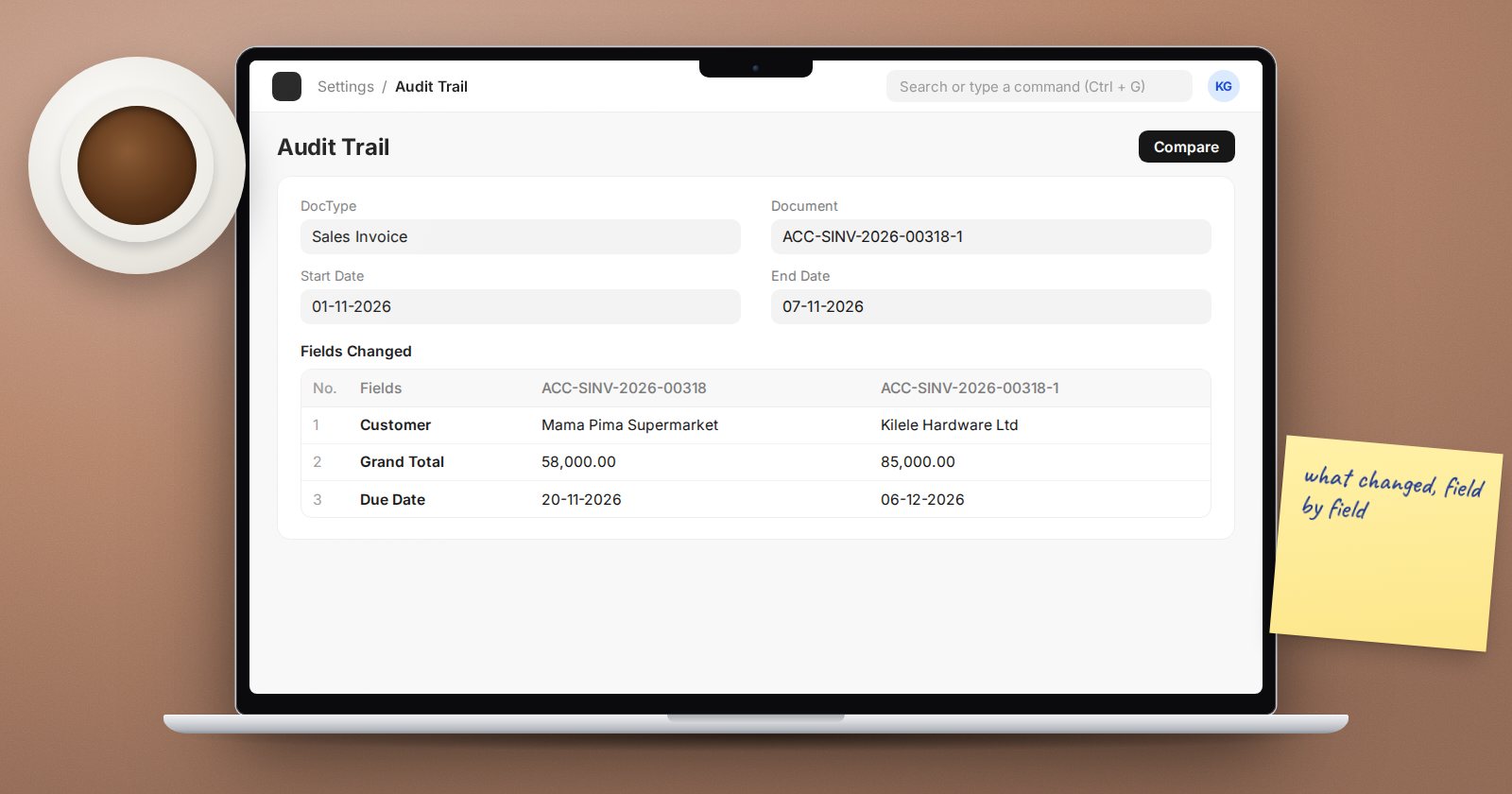
The Audit Trail tool lets you pick a DocType and a document and compares it with its amended versions side by side, showing changed fields and rows added or removed. It answers "what exactly changed between the original invoice and the amendment?"
Who logged in: Activity Log
Activity Log records logins and logouts, including failed login attempts, with the user and time. Use it to confirm whether an account was in use at a given moment. By default Frappe clears Activity Log entries older than 90 days; adjust this in Log Settings if your policy needs longer.
Who exported or printed: Access Log
Access Log records many ways data leaves the system: exports from list and report views and the data export tool, PDF and print generation, and downloads of backups and files. If you are worried about who took a copy of the customer list or payroll data, look here.
Who changed permissions: Permission Log
Changes to users' roles, role profiles, user permissions and role permissions are recorded in Permission Log, with what changed and who changed it. This is the first place to look after an unexpected access change.
Who viewed a record
DocTypes also have a Track Views option. When on, opening a document is recorded in a View Log. Use it selectively, for sensitive records such as employee files, because it creates a record every time someone opens a document.
Protect the trail itself
An audit trail is only useful if people cannot quietly erase it:
- Keep System Manager, which can change log settings and delete records, limited to a few people.
- Do not clear Version records to save space.
- Set Log Settings retention to match your audit and legal requirements, not convenience.
- Include logs in your backups and keep older backups offsite for the same period.
- Make sure everyone has a personal login. A shared account makes every record point to "stores".
Audit trail checklist
- [ ] Track Changes on for sensitive master data
- [ ] Team knows how to read the timeline and Version records
- [ ] Audit Trail tool used for amended documents
- [ ] Activity Log and Access Log retention agreed
- [ ] Permission Log reviewed after access changes
- [ ] Track Views on only where justified
- [ ] No shared accounts
Investigating accounting changes is part of our Accounting Professional course, while the settings side is covered in ERPNext Administration Without Code.
