
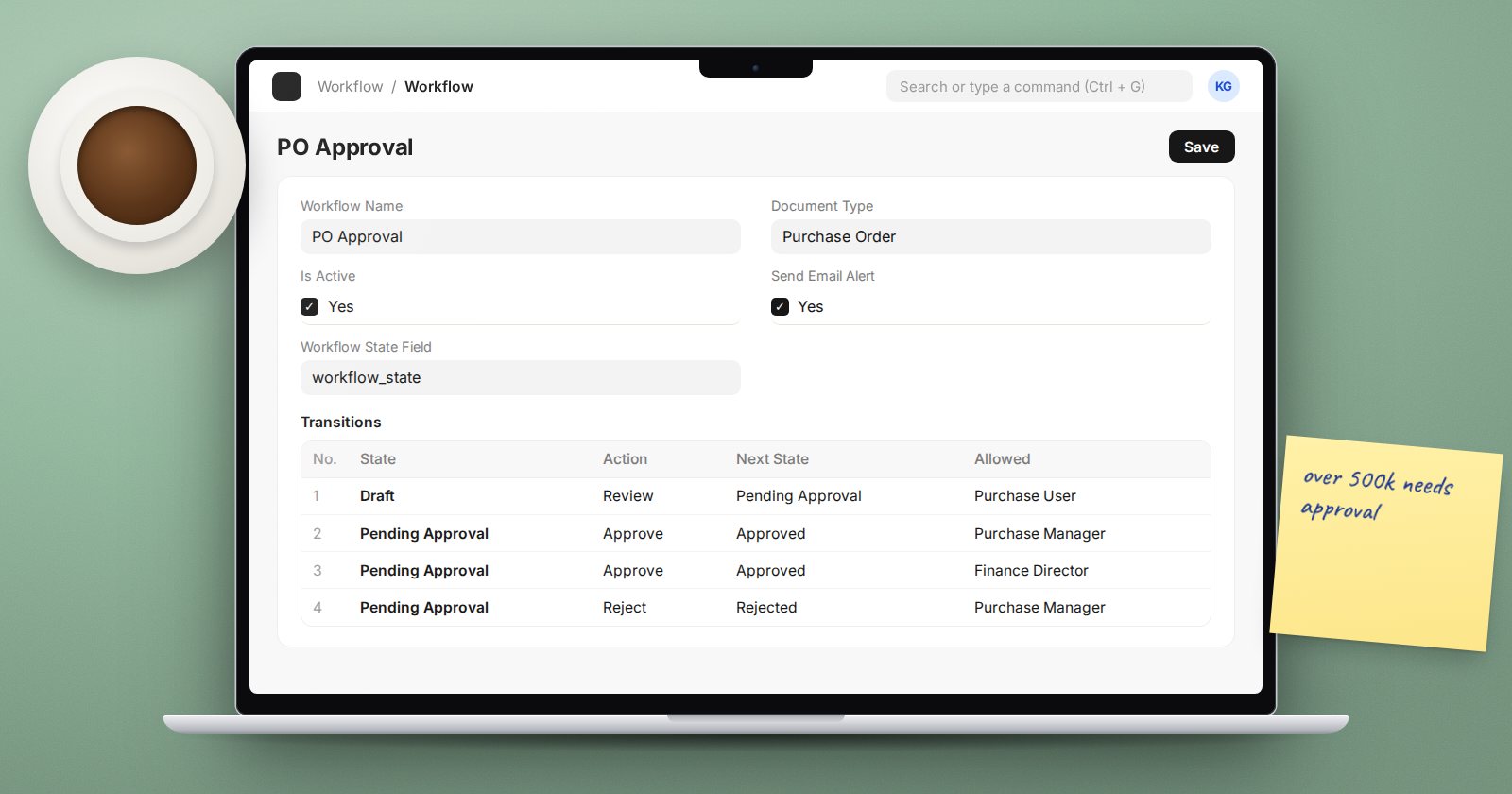
An approval rule that lives only in an email thread is not a control. ERPNext's Workflow lets you make the rule part of the document: a purchase order cannot be submitted until the right person has pressed Approve. You build it from the desk, with no code.
The pieces
A workflow has three parts:
- States - where a document can be, such as Draft, Pending Approval, Approved, Rejected. Each state is tied to a document status: 0 (draft), 1 (submitted) or 2 (cancelled).
- Transitions - the allowed moves between states. Each one names a starting state, an Action (the button the user sees, such as "Approve"), the next state, and the Role allowed to press it.
- The Workflow record - which DocType it applies to, and whether it is active.
States and actions are reusable records (Workflow State and Workflow Action Master), so "Approve" created once can be used by every workflow.
A purchase order approval
Search for "New Workflow" and fill in:
- Workflow Name: PO Approval
- Document Type: Purchase Order
- Is Active: ticked
Document States:
| State | Doc Status | Only Allow Edit For |
|---|---|---|
| Draft | 0 | Purchase User |
| Pending Approval | 0 | Purchase Manager |
| Approved | 1 | Purchase Manager |
| Rejected | 0 | Purchase User |
Transitions:
| State | Action | Next State | Allowed |
|---|---|---|---|
| Draft | Review | Pending Approval | Purchase User |
| Pending Approval | Approve | Approved | Purchase Manager |
| Pending Approval | Reject | Rejected | Purchase Manager |
| Rejected | Review | Pending Approval | Purchase User |
Moving to Approved submits the purchase order, because that state has Doc Status 1. The Purchase Manager role needs Submit permission on Purchase Order for that to work.
When you save an active workflow, ERPNext creates a hidden custom field called workflow_state on the DocType to hold the current state. Saving one workflow as active deactivates any other active workflow on the same DocType.
Conditions for amount limits
A transition can carry a Condition, a Python expression evaluated against the document. To send only large orders to the finance director, add two transitions from Pending Approval:
doc.grand_total <= 500000
for Purchase Manager, and
doc.grand_total > 500000
for a Finance Director role. The Approve button only appears for the role whose condition is true.
Self-approval
Each transition has Allow Self Approval, ticked by default. If the person who created the purchase order also holds Purchase Manager, they can approve their own order. For real segregation of duties, untick it on the approval transitions. The document's creator will then not see the Approve button, while other users with the role will.
Rules ERPNext enforces
ERPNext checks your design when you save and rejects:
- a move from a submitted state (1) back to a draft state (0),
- a move from a draft state (0) straight to cancelled (2),
- any move out of a cancelled state.
If you need to undo an approval, add a state with Doc Status 2 and a "Cancel" transition from Approved.
Notifications
Tick Send Email Alert on the workflow to email the users who can act on the next step. Each document state also has a Send Email On State checkbox and an optional email template. Pending actions appear in the Workflow Action list, which works as an approver's inbox.
Try it
- Build the PO Approval workflow above on a test site.
- Create a purchase order as a Purchase User and press Review.
- Log in as a Purchase Manager and approve it. Confirm it is submitted.
- Untick Allow Self Approval on Approve and test with a user who holds both roles.
Workflows, approval design and the permissions behind them are part of ERPNext Administration Without Code.
