
Integrations make ERPNext more useful: an online shop pushing orders, a payment service posting receipts, a reporting tool reading data. Most of them connect with an API key and secret. Those two strings work like a username and password that never expire and are never asked for 2FA. They deserve careful handling.
How ERPNext API keys work
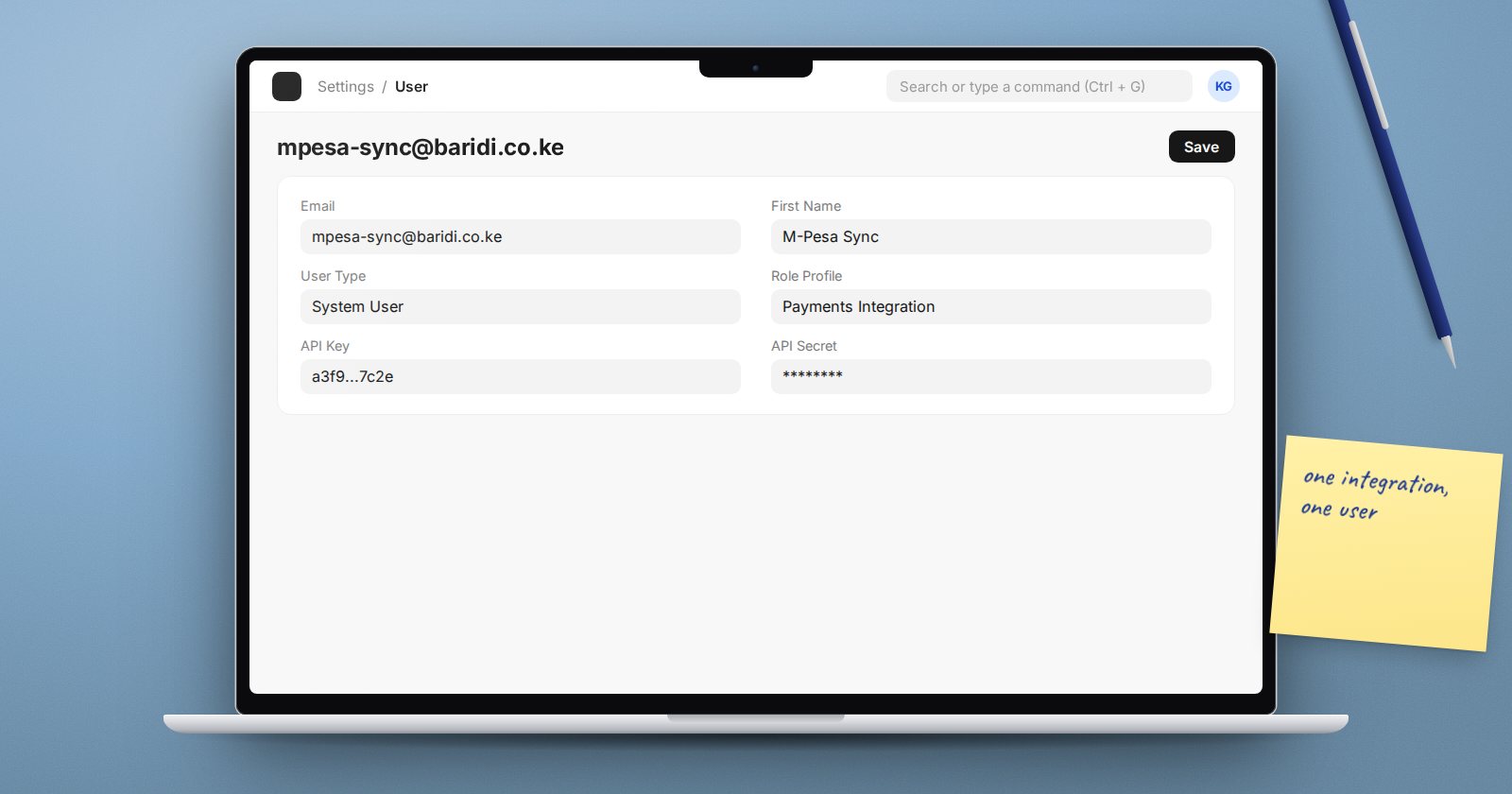
API keys belong to a User. On the user record, a System Manager clicks Generate Keys in the settings section. ERPNext shows the API key and the API secret in a dialog, with the warning that the secret will not be displayed again. The secret is stored as a password field afterwards.
The integration then sends both with each request:
Authorization: token :
Whatever the integration does, it does as that user, with that user's roles and permissions. That is the most important fact in this article.
Rule 1: one integration, one user
Do not generate keys on a real person's account, and never on Administrator. Create a dedicated user for each integration, for example shop-integration@yourcompany.com, and give it only the roles that integration needs. If the shop only creates Sales Orders and reads Items, it should not be able to touch the general ledger.
This also makes the audit trail clear: every record the integration creates shows the integration user as its owner.
Rule 2: store the secret like a password
- Put it in the integration's secret store or environment configuration, not in source code.
- Never commit it to Git, paste it into chat, or send it by email.
- Record in your integration register which user and key each system uses, and who owns it. Do not record the secret there.
Rule 3: log and watch
System Settings has Log API Requests. When on, each API call is recorded in API Request Log with the path, method and user. By default Frappe clears these entries after 90 days. Turn it on for a period after any new integration goes live, and whenever you need to check what an integration is doing.
Rule 4: rotate and revoke
- Rotate: clicking Generate Keys again on the same user issues a new secret and the old secret stops working. The API key itself stays the same; the field notes that the API key cannot be regenerated. Update the integration with the new secret straight away, or it will fail.
- Revoke quickly: ERPNext only accepts API keys belonging to enabled users. Disabling the integration user cuts off that integration at once, which is the fastest response if you think a secret has leaked.
Rotate secrets when a developer or vendor with access leaves, when a secret may have been exposed, and on a regular schedule that you agree with the integration owner.
Rule 5: review regularly
During your quarterly user access review, list every user with an API key. For each, confirm the integration still exists and still needs its roles. Disable integration users for systems that have been retired.
API key checklist
- [ ] One dedicated user per integration, never Administrator
- [ ] Integration users hold only the roles they need
- [ ] Secrets stored outside source code and chat
- [ ] Integration register lists owner and user for each key
- [ ] API request logging used after go-live and when investigating
- [ ] Secrets rotated when people with access leave
- [ ] Team knows disabling the user revokes access instantly
- [ ] API users reviewed every quarter
If you are building integrations yourself, our ERPNext as a Platform course covers the API side, while ERPNext Administration Without Code covers users and roles.
