
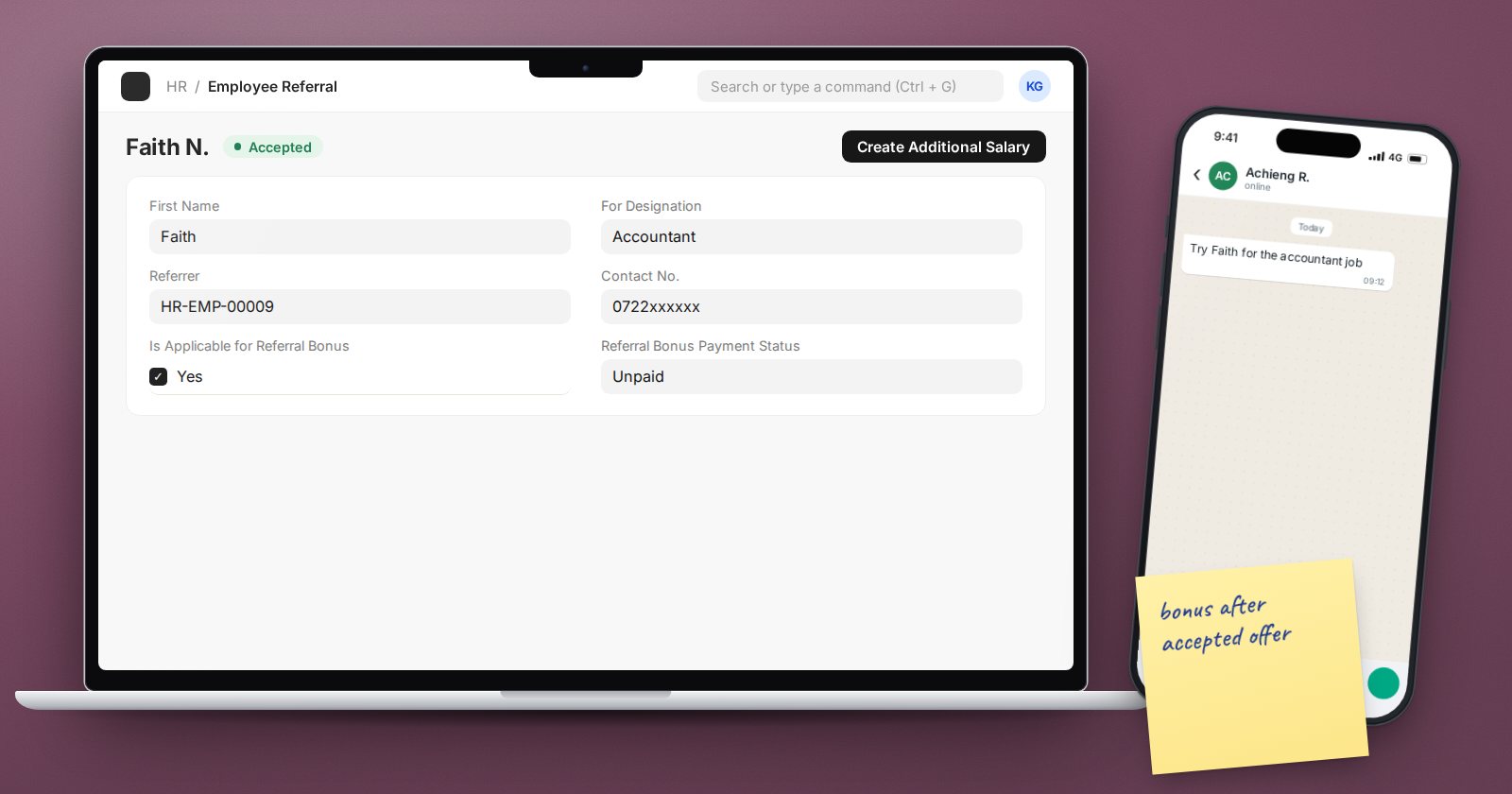
Your best candidates often come from your own staff. A field technician knows a good colleague at a competitor; an accountant knows a former classmate who is ready to move. Without a record, these tips get lost in WhatsApp chats and the promised referral bonus is forgotten or paid twice. ERPNext HRMS has an Employee Referral document that tracks each tip from the first name to the bonus payment.
What a referral records
Create an Employee Referral with:
- First Name, Last Name, Email and Contact No. of the candidate.
- For Designation - the role they are being referred for.
- Referrer - the employee making the referral. The referrer must be an active employee.
- Current Employer, Current Job Title, Resume or Resume Link.
- Why is this Candidate Qualified for this Position? and Work References - the referrer's case for the candidate.
- Is Applicable for Referral Bonus - ticked by default. Untick it for referrals that fall outside your bonus policy, such as referrals for senior roles.
ERPNext allows one referral per email address. If a second employee refers the same person, the system points to the existing referral, which settles the "who referred first" argument before it starts.
From referral to applicant
Submit the referral. While its status is Pending, two buttons appear:
- Create Job Applicant - makes a Job Applicant with the name, email, phone, CV and designation copied across, and Source set to Employee Referral. The referral status moves to In Process.
- Reject Employee Referral - for tips that clearly do not fit.
From then on the applicant drives the referral. When the applicant's status changes to Open, Replied or Hold, the referral shows In Process. When the applicant is Accepted or Rejected, the referral takes the same status. HR does not need to update two records.
Paying the referral bonus
Once the referral is Accepted and bonus-eligible, a Create Additional Salary button appears on it. This opens an Additional Salary for the referrer, linked back to the referral. You choose the earning Salary Component (for example "Referral Bonus"), the Amount and the Payroll Date, then submit. The bonus is paid in that month's payroll like any other one-off earning.
ERPNext guards this step:
- The referral must be marked Is Applicable for Referral Bonus.
- Its status must be Accepted.
- The component must be an earning, not a deduction.
When the Additional Salary is submitted, the referral's Referral Bonus Payment Status changes from Unpaid to Paid. Cancel the Additional Salary and it goes back to Unpaid.
Set your policy before you start
The system tracks the bonus but does not decide your policy. Agree these points first and write them on the bonus salary component's description:
- When it is paid. Many companies pay only after the new hire passes probation. Set the Payroll Date to that month rather than paying on acceptance.
- Who is eligible. Exclude HR staff and the hiring manager for their own team if that is your rule, and untick the bonus flag on those referrals.
- Tax treatment. A referral bonus is normally taxable pay, so leave Is Tax Applicable ticked on the component unless your tax adviser says otherwise.
Reports that help
- The Employee Referral list, filtered by Referral Bonus Payment Status = Unpaid and status Accepted, is your list of bonuses still owed.
- The Job Applicant list filtered by Source = Employee Referral shows how many hires come from staff tips.
Try it
Create a referral for a test candidate, create the job applicant from it, then set the applicant to Accepted. Confirm the referral changed to Accepted, create the Additional Salary, and check that the payment status reads Paid after submission.
Recruitment is covered in the HR Essentials course, and one-off earnings in the Payroll course.
