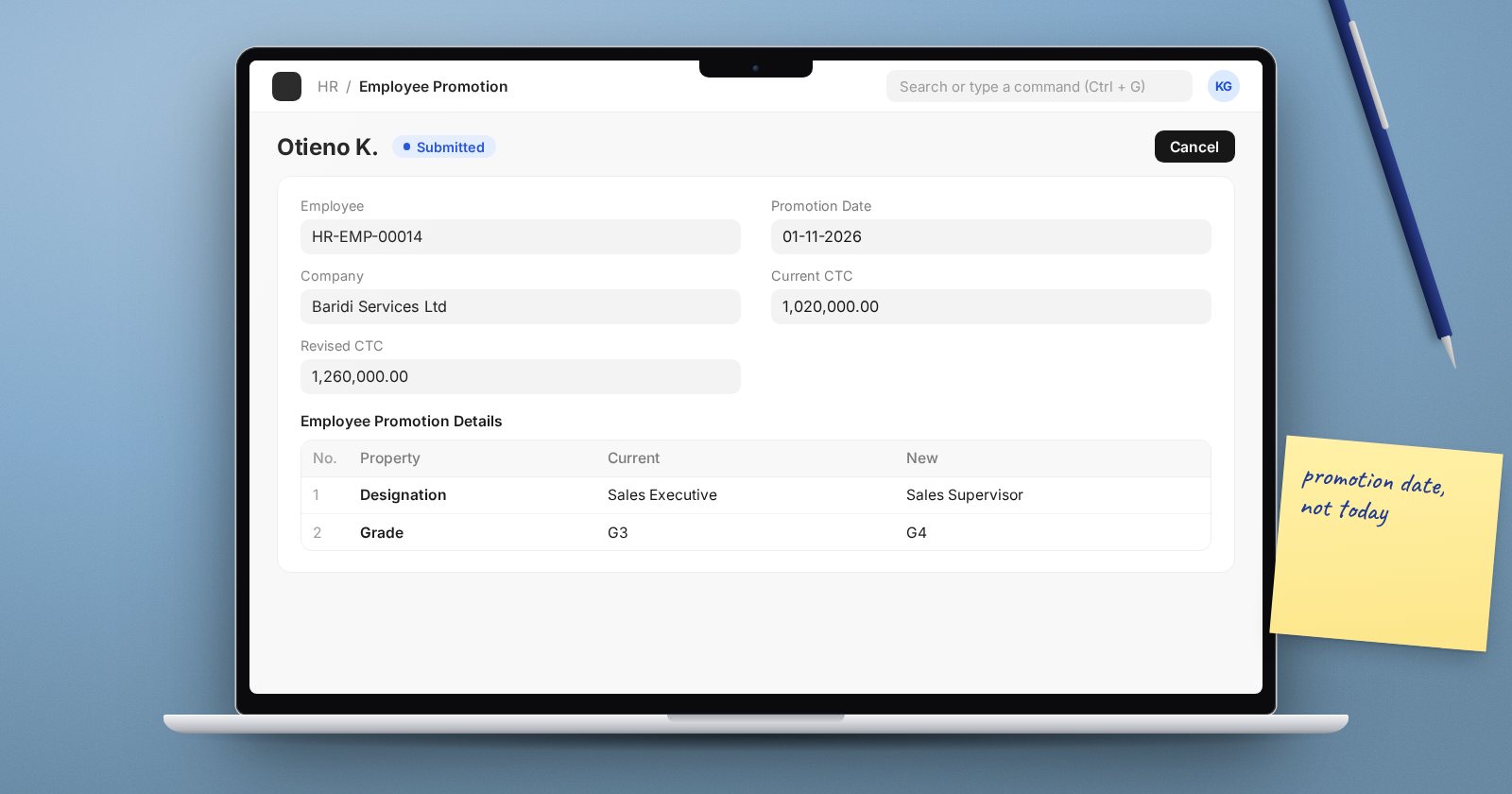
When someone is promoted, HR often edits the designation on the Employee record and moves on. The change works, but the history is gone: nobody can later see when the person became a supervisor or what they earned before. ERPNext HRMS has an Employee Promotion document that changes the record on the right date and keeps the trail.
What Employee Promotion changes
Create an Employee Promotion with the Employee and the Promotion Date. Then fill two parts.
Promotion details
In the Employee Promotion Details table, click Add Employee Property. A dialog lets you pick a field on the Employee record, shows its current value and asks for the new one. Common choices:
- Designation - for example Accounts Assistant to Accountant.
- Grade - if you use Employee Grades.
- Department or Branch - if the promotion moves the person.
- Reports To - the new manager.
Each row stores the Property, Current and New values. Personal fields such as name, date of birth, gender, date of joining and status cannot be picked here, which keeps the document focused on the job.
Salary details
Current CTC shows the employee's Cost to Company (CTC) and Revised CTC takes the new figure. On submission, the Employee's CTC field is updated.
The date rule
ERPNext will not let you submit a promotion before its Promotion Date. You can prepare and save it early, for approval, but submit it on or after the effective date. Plan the paperwork so it is ready for that day.
What happens on submit
- Each property row is written to the Employee record.
- If designation, department or branch changed, a row is added to the employee's Internal Work History with the promotion date. If the history table was empty, ERPNext first adds a row for the original values from the date of joining.
- The CTC is updated if you entered a revised figure.
Cancelling the promotion puts the old values back and removes the history row.
The step people miss: pay
Revised CTC is a summary figure on the Employee. It does not change what payroll pays. Salary slips are driven by the Salary Structure Assignment. To pay the new salary:
- Create a new Salary Structure Assignment for the employee with From Date equal to the effective date of the raise.
- Enter the new Base (and Variable if you use it), and the new structure if the role moves to a different one.
- Submit it before you run payroll for that month.
If the raise is backdated and earlier months have already been paid, the difference is an arrear. HRMS v16 has an Arrear document that calculates it from the new assignment; treat that as a separate step.
Approvals
Promotions often need sign-off from management. If yours do, add a simple Workflow on Employee Promotion (Draft, Pending Approval, Approved) so HR prepares it and a director approves it before submission.
Try it
Promote a test employee from one designation to another with a revised CTC and a promotion date of today. Submit, then open the Employee and check the designation, the CTC and the new Internal Work History row. Finally, create the matching Salary Structure Assignment and preview a salary slip to confirm the new pay.
Employee lifecycle records are covered in the HR Essentials course, and salary assignments in the Payroll course.