
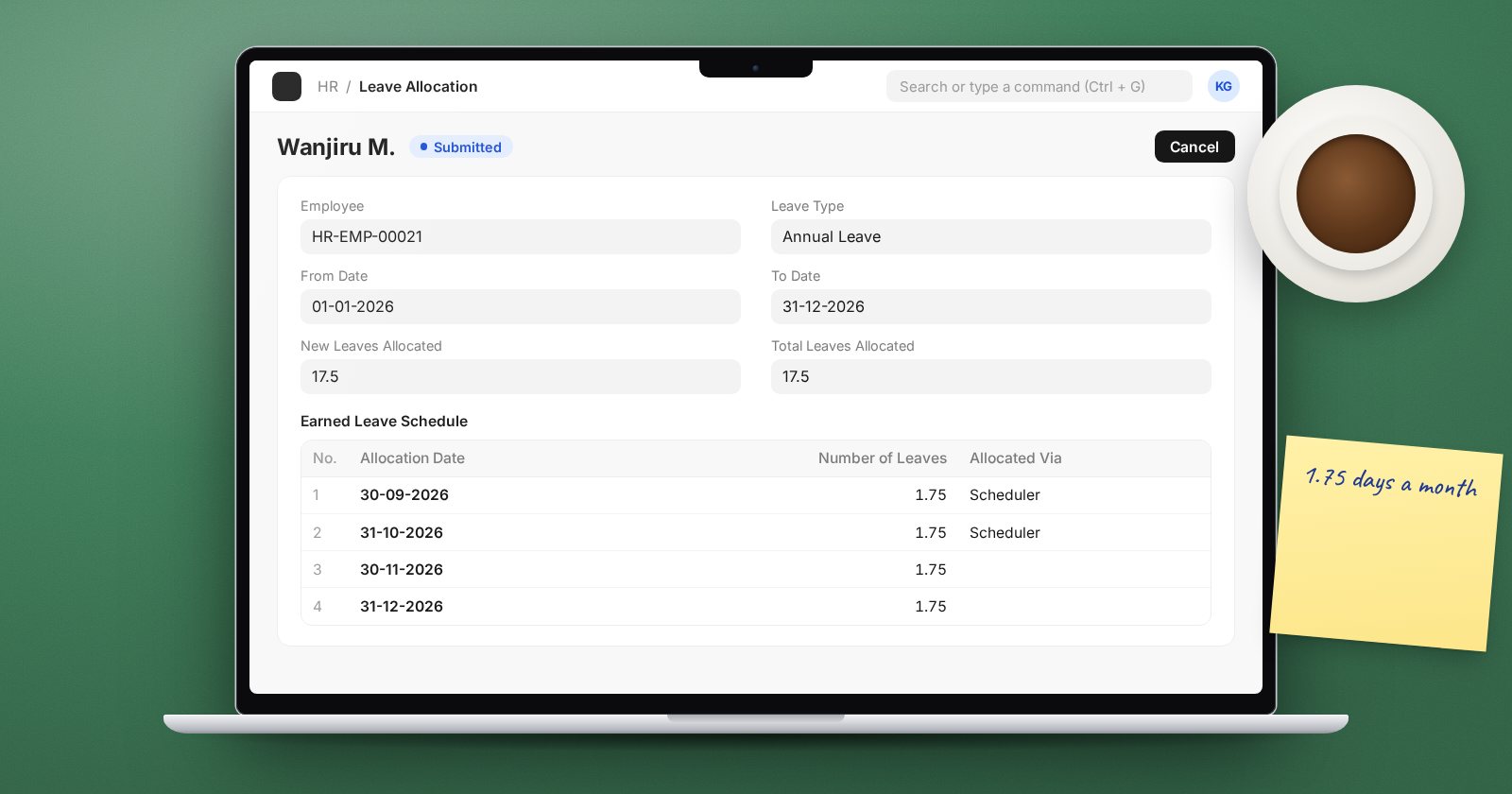
Many employers grant annual leave as it is earned rather than all at once on 1 January. An employee who has worked three months has three months' worth of leave, not the full year's. ERPNext handles this with the Is Earned Leave setting on a Leave Type. Set up correctly, balances grow on their own every period without anyone entering allocations by hand.
How earned leave works
You still give the employee a Leave Policy with an Annual Allocation, for example a number of days of annual leave. Because the leave type is marked as earned leave, the policy assignment does not grant the whole amount at once. Instead, a daily scheduled job in HRMS checks whether today is an allocation date for each earned leave allocation, and if so adds that period's share to the employee's Leave Allocation.
So the annual figure is spread across the year according to the frequency you choose.
The Leave Type settings
Open the leave type (for example Annual Leave) and tick Is Earned Leave. Then set:
- Earned Leave Frequency - Monthly, Quarterly, Half-Yearly or Yearly.
- Allocate on Day - First Day, Last Day or Date of Joining. This is the day of the period when the leave is added. The default is Last Day, meaning leave for a month is credited at the end of that month.
- Rounding - blank, 0.25, 0.5 or 1.0. If the annual allocation does not divide evenly by the frequency, rounding decides how each period's amount is rounded.
- Maximum Leave Allocation Allowed per Leave Period - a cap so accrual cannot exceed what policy allows.
Decide with HR how partial amounts should be treated before choosing rounding. It is a policy question, not a system one.
Assigning it
Create a Leave Policy containing the earned leave type and its annual allocation, then submit a Leave Policy Assignment for each employee (or use the Leave Control Panel). The resulting Leave Allocation starts small and grows as each allocation date passes.
In current version-16 HRMS, the allocation also carries an Earned Leave Schedule table listing each allocation date, the number of leaves, and whether it was allocated, by what (scheduler, policy assignment or manually) and any failure reason. That table is the first place to look when someone asks why their balance did not move.
What can go wrong
- The scheduler is not running. Earned leave depends on the daily background job. If scheduled jobs are disabled on the site, nothing accrues. Your system administrator can confirm the scheduler is enabled.
- An allocation failed. Failures are recorded and HRMS emails a notice. On the Leave Allocation, the Retry Failed Allocations button reattempts them once the cause is fixed.
- Mid-year joiners. If Allocate on Day is Date of Joining, the credit lands on the joining day each period, which some HR teams prefer for fairness.
Try it
- Create a test leave type with Is Earned Leave ticked and a Monthly frequency.
- Add it to a test leave policy and assign it to a test employee from the start of the current leave period.
- Open the Leave Allocation and read the Earned Leave Schedule.
- After the next allocation date, run the Employee Leave Balance report and confirm the balance rose by the expected amount.
If the schedule shows the right dates and amounts, the setup is right.
Leave configuration from simple allocations to accrual is part of the HR Essentials course.
