
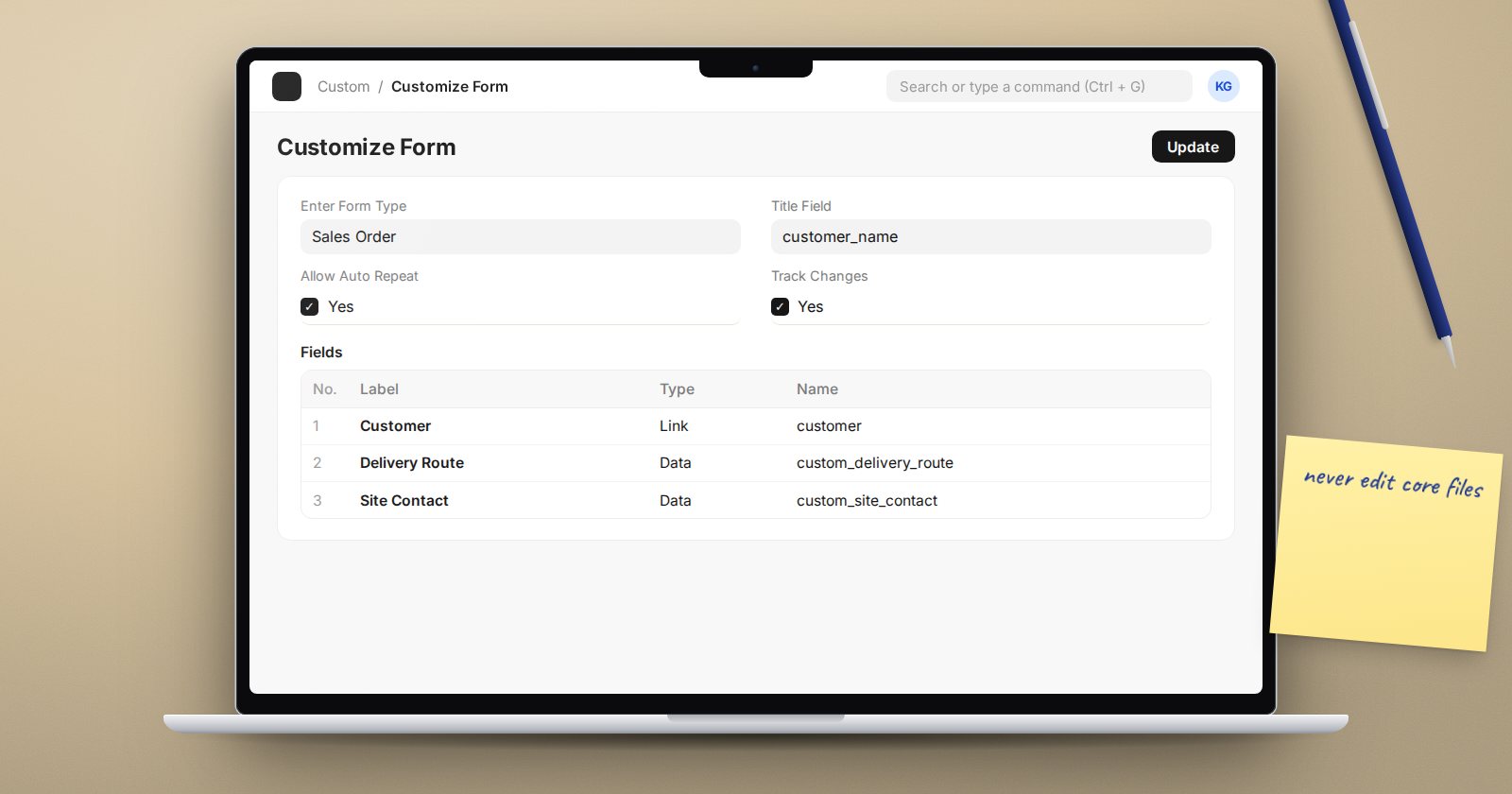
Almost every ERPNext implementation changes a few forms: a field the business needs, a label that makes more sense, a field nobody uses hidden away. ERPNext gives you two tools for this, and knowing which one does what keeps your changes safe through upgrades.
Two tools, one rule
- Customize Form changes the properties of fields that already exist: label, hidden, mandatory, default, print hide, permission level and so on. It also adds new fields from the same screen.
- Custom Field is the record behind every field you add. You can create one directly from the Custom Field list, or let Customize Form create it for you when you add a row.
The rule behind both: you never edit the standard DocType. Your changes are stored as separate records, and ERPNext merges them on top of the standard definition every time the form loads. When you upgrade, the standard DocType is replaced but your records stay and are applied again.
Where the changes live
- A new field is saved as a Custom Field record named after the DocType and fieldname, for example
Sales Order-custom_delivery_route. - A changed property on any field is saved as a Property Setter record: DocType, field, property, value.
This is why you can use Customize Form's "Reset to defaults" to remove your property changes and custom fields for a DocType in one step. Use it with care on a live system.
Naming new fields
When you add a field with only a label, ERPNext builds the fieldname from it, strips special characters and prefixes it with custom_. A field labelled "Delivery Route" becomes custom_delivery_route. The prefix means a future ERPNext release that adds its own delivery_route field will not collide with yours. Keep the prefix even if you set the fieldname yourself.
Choose the fieldname with care before saving. Reports, print formats and scripts will refer to it, and renaming it later means fixing all of them.
Useful properties most people miss
- Fetch From - pull a value from a linked record. On Sales Order, a field with Fetch From set to
customer.custom_delivery_routecopies the route from the customer when the customer is selected. Tick Fetch If Empty if users may override it. - Depends On - show the field only when a condition holds, such as
eval:doc.order_type=="Sales". - Mandatory Depends On and Read Only Depends On - make a field required or locked only in certain cases.
- Allow on Submit - lets a field be edited after the document is submitted. Use it for things like a tracking number, never for amounts.
- In List View and In Standard Filter - put the field where users can see and filter by it.
Limits
Customize Form refuses a short list of core DocTypes (including User, Role, Report and Print Format) and Single DocTypes such as settings pages. For those, and for anything that needs logic beyond properties, you need a custom app.
Also avoid hiding fields that ERPNext's own logic depends on. Hiding a field does not stop the code from expecting a value in it.
Moving changes between sites
Custom Fields and Property Setters are ordinary records, so they can be exported. On a developer setup they travel inside a custom app as fixtures. Make changes once on a test site, export them, and apply them to production the same way every time, rather than clicking the same changes twice and hoping they match.
Try it
- On a test site, open Customize Form for Customer and add a Data field labelled "Delivery Route". Note the fieldname it gets.
- Open Customize Form for Sales Order and add a field with Fetch From
customer.custom_delivery_route. - Create a sales order and check the route fills in.
- Open the Property Setter list filtered by Sales Order and see what your changes created.
Form customisation is covered in depth in ERPNext Administration Without Code.
