
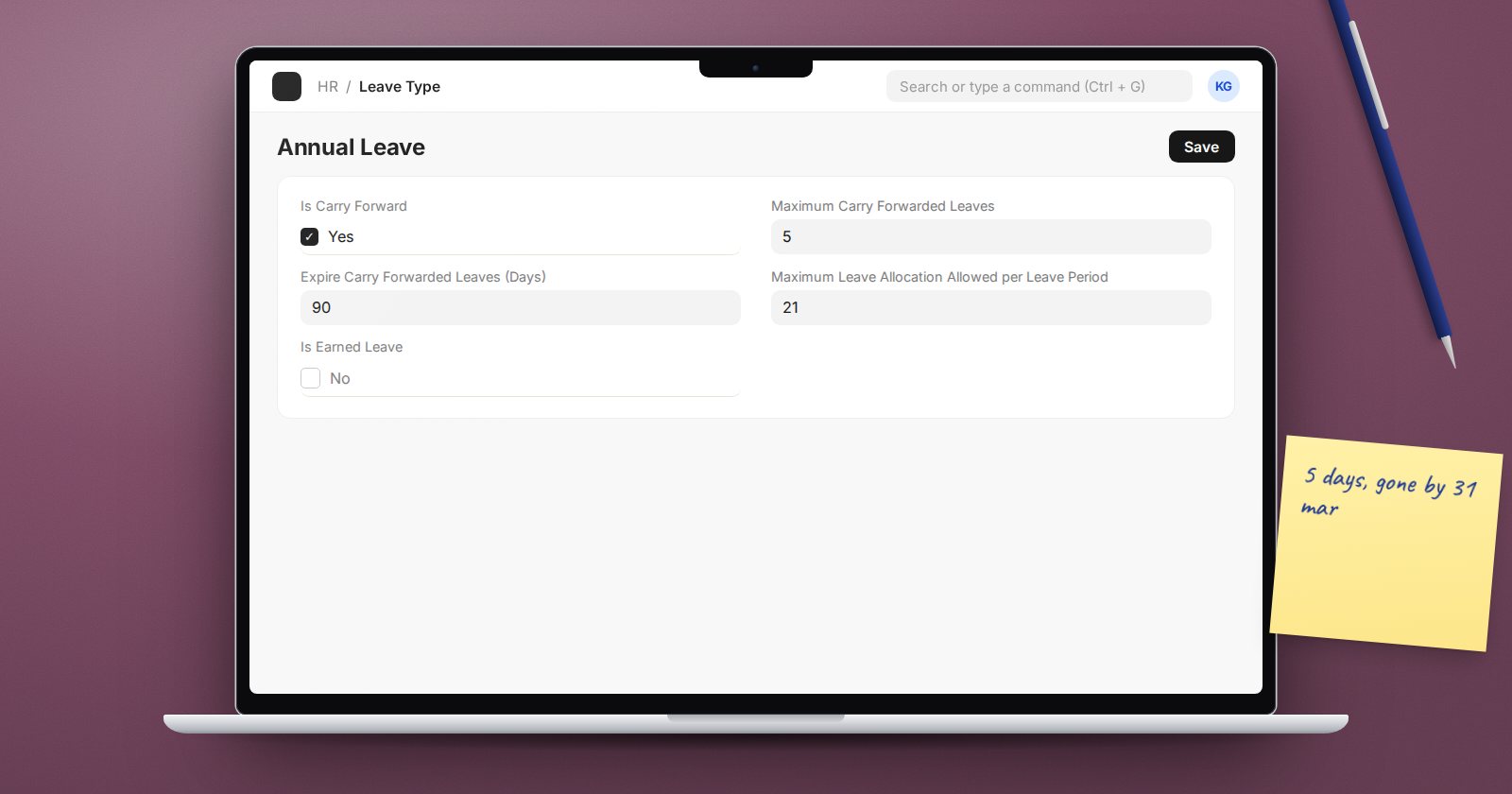
At the end of every leave year, HR faces the same question: what happens to the days people did not take? Some policies let all of it roll over, some cap it, and some let it roll over only for the first few months of the new year. ERPNext supports all three through three settings on the Leave Type and one tick box on the new allocation.
The three Leave Type settings
Open the leave type, typically Annual Leave, and look for:
- Carry Forward - must be ticked for any unused balance to move. If it is not, ERPNext refuses to carry the type forward and shows an error saying the leave type cannot be carry-forwarded.
- Maximum Carry Forwarded Leaves - the cap. If an employee has more unused days than this, only the cap is carried. Leave it at zero for no cap.
- Expire Carry Forwarded Leaves (Days) - how long carried days stay usable in the new allocation. Leave it at zero and carried days last as long as the new allocation does.
Match these to your written leave policy. If the policy says "a maximum number of days may be carried and must be used by a set date", the first number goes in the cap and the second becomes a count of days from the start of the leave year.
How the carry forward happens
Carrying forward is not a separate process. It happens when the new period's allocation is created with Add unused leaves from previous allocations ticked. That option exists on:
- the Leave Allocation itself,
- the Leave Policy Assignment, and
- the Leave Control Panel (as Carry Forward), for bulk allocation.
When ticked, ERPNext reads the unused balance from the previous allocation of the same leave type, applies the cap, and records the result in the Carry Forwarded Leaves field. The Total Leaves Allocated is then the new entitlement plus the carried amount.
How expiry works
ERPNext keeps a Leave Ledger Entry for every allocation, application and expiry. Carried days get their own ledger entry. If you set an expiry period, that entry ends on the allocation start date plus the number of days you entered.
A daily background job then looks for allocations that have ended and posts expiry entries against what is left. So expiry is automatic, provided the site's scheduler is running. Days that were not carried forward simply expire with the old allocation.
Order of operations at year end
- Make sure all leave applications for the old year are approved or rejected and submitted. Open applications do not reduce the balance.
- Run the Employee Leave Balance report for the old year and keep a copy as a record.
- Create the new year's allocations with carry forward ticked, ideally through Leave Policy Assignments or the Leave Control Panel.
- Spot-check a few employees: carried amount, cap applied, total correct.
- After the expiry date passes, check the Leave Ledger report to confirm expiry entries were posted.
Mistakes to avoid
- Creating the new allocation before last year's applications are final, so the carried amount is wrong. If that happens, cancel and recreate the new allocation once the old year is closed.
- Forgetting to tick carry forward in the bulk tool.
- Setting an expiry period on a leave type where policy says carried days never expire.
Try it
For a test employee with a few unused days, create next year's allocation with carry forward ticked and a small cap. Confirm the cap is applied, then look at the two ledger entries created: one for the new entitlement and one for the carried days with its own end date.
Leave policy setup, including year-end handling, is covered in the HR Essentials course.
