
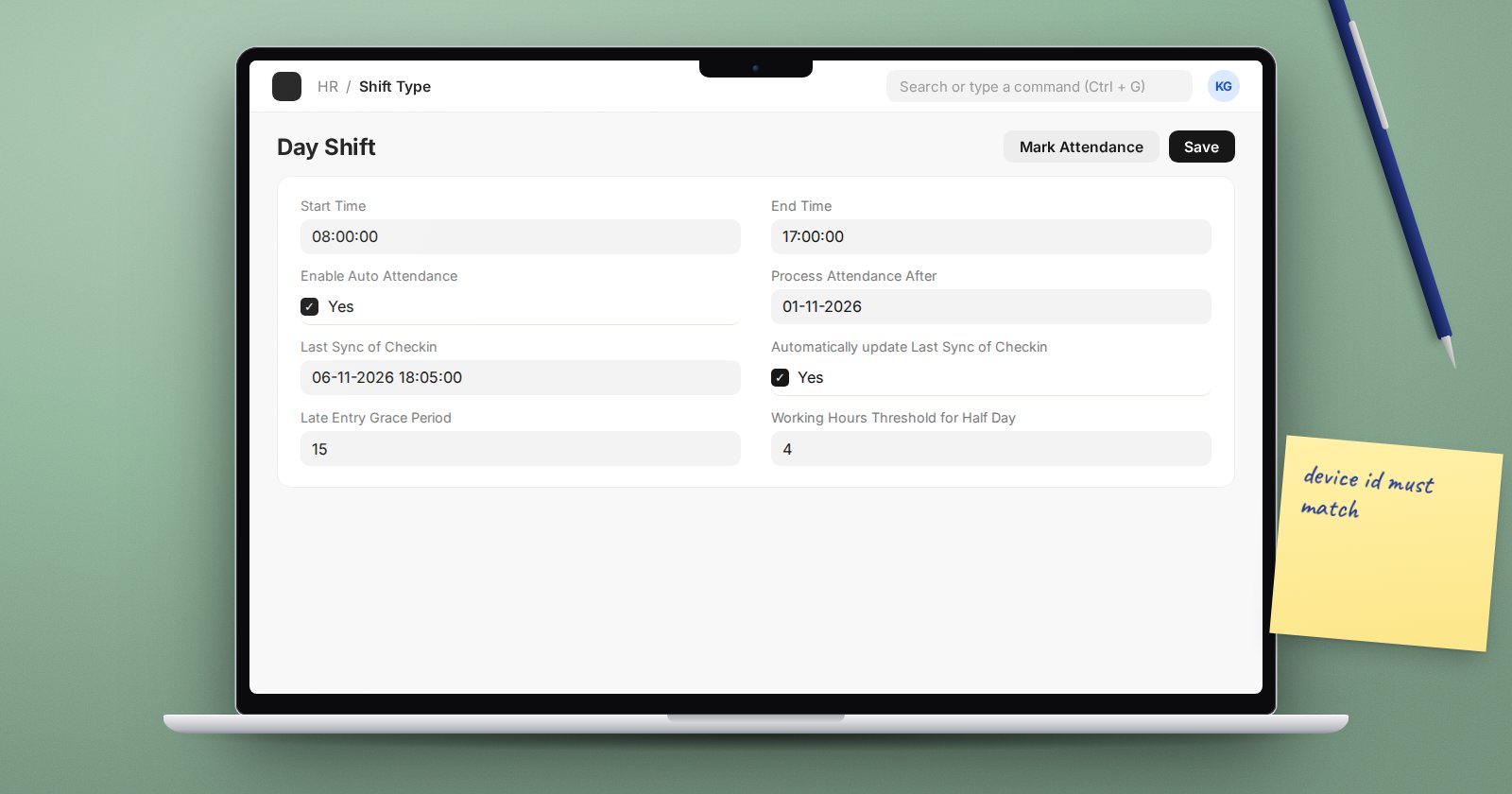
Marking attendance by hand does not scale past a small office. If staff clock in on a biometric device or the mobile app, ERPNext can turn those clock-ins into attendance records on its own. The setup has three parts: getting check-ins in, telling the shift how to read them, and letting the scheduled job do the work.
Part 1: getting check-ins into ERPNext
Every clock-in becomes an Employee Checkin record with the employee, a Time, an optional Log Type (IN or OUT) and a Location / Device ID.
Check-ins arrive in one of these ways:
- Mobile app - HR Settings has Allow Employee Checkin from Mobile App (on by default) and Allow Geolocation Tracking.
- A biometric device integration - a small connector reads logs from the device and posts them to ERPNext. HRMS provides an API method,
add_log_based_on_employee_field, that finds the employee by a field value and creates the check-in. By default it matches on Attendance Device ID (Biometric/RF tag ID) on the Employee. - Import - a spreadsheet export from the device loaded through Data Import, useful for testing.
The device user ID must match the employee's Attendance Device ID exactly. Most "missing attendance" problems start here.
Part 2: how the shift reads check-ins
Open the Shift Type and set:
- Determine Check-in and Check-out - either "Alternating entries as IN and OUT during the same shift" or "Strictly based on Log Type in Employee Checkin". Use the second only if your device records IN and OUT reliably.
- Working Hours Calculation Based On - first check-in and last check-out, or every valid pair.
- Begin check-in before shift start time (in minutes) and Allow check-out after shift end time (in minutes) - the window in which logs count for this shift. Both default to 60.
- Working Hours Threshold for Half Day and Working Hours Threshold for Absent - hours below which those statuses apply. Zero disables each.
- Enable Late Entry Marking with Late Entry Grace Period, and Enable Early Exit Marking with Early Exit Grace Period - flags late and early on the attendance record.
Part 3: turning on auto attendance
Tick Enable Auto Attendance and set Process Attendance After to the date you want to start from. Do not set it far in the past, or the first run will create attendance for months.
Then there is Last Sync of Checkin. ERPNext only processes shifts that ended before this timestamp, so it never marks someone absent while their logs are still on the device. Your integration should update it after each successful sync. If you have a single device or use the mobile app, tick Automatically update Last Sync of Checkin and HRMS updates it after each shift ends.
An hourly background job processes all shifts with auto attendance enabled. For working days in the window with no check-ins at all, it marks the employee Absent. You can also run it on demand with the Mark Attendance button on the Shift Type.
Things to know
- Employees on approved leave are not marked absent for those days.
- Mark Auto Attendance on Holidays is off by default; turn it on only if check-ins on holidays should become attendance.
- A check-in can be flagged Skip Auto Attendance to exclude it.
Try it
Pick one shift and one employee. Import two check-ins for yesterday (one in, one out), set Process Attendance After to yesterday, update Last Sync to now, and click Mark Attendance. Open the resulting Attendance record and confirm the working hours and any late entry flag.
Attendance from devices is one of the topics in the HR Essentials course.
