
ERPNext HRMS has a complete appraisal module. It is built around a cycle (the review period), templates of weighted Key Result Areas, goals that track progress, and feedback from the employee and their reviewers. Here is how the pieces fit and a sensible order to set them up.
The building blocks
- KRA - a Key Result Area, such as "Sales growth" or "Customer satisfaction". A simple master list.
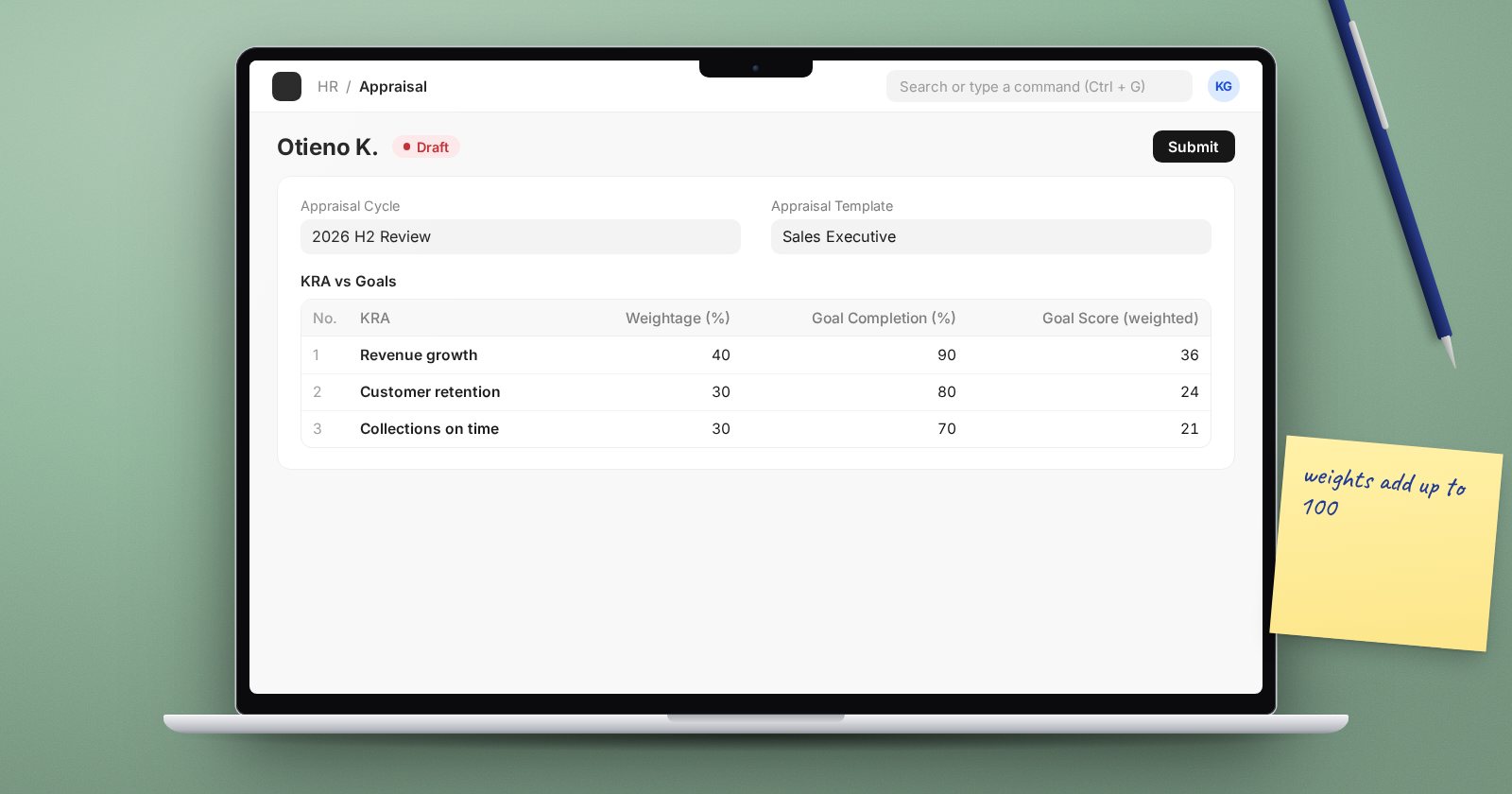
- Appraisal Template - a set of KRAs, each with a Weightage (%), plus Rating Criteria used for feedback, such as "Communication" or "Teamwork".
- Appraisal Cycle - the review period: a Cycle Name, Start Date, End Date and Company.
- Goal - a specific target for one employee, linked to a KRA and an appraisal cycle, with a Progress percentage. Goals can be nested under a Parent Goal.
- Appraisal - one employee's review in one cycle.
- Employee Performance Feedback - a rating and comments from a reviewer.
Step 1: templates
Create KRAs, then templates. A template per role works well: one for sales staff, one for accounts, one for supervisors. Weightages within a template should add up to 100. To save time, set the Appraisal Template on each Designation; ERPNext then picks it up for everyone with that designation.
Step 2: the cycle
Create an Appraisal Cycle. Choose the KRA Evaluation Method:
- Automated Based on Goal Progress - KRA scores come from the progress of the employee's goals under each KRA.
- Manual Rating - reviewers rate KRAs directly.
Filter by branch, department or designation if the cycle is not company-wide, then click Get Employees. Each row shows the employee and their template; fix any blanks. Then use Create Appraisals.
Step 3: goals during the period
With goal-based evaluation, managers and staff create Goals against the cycle and KRAs, then update Progress as work happens. Keep goals specific and measurable. "Improve sales" is not a goal; a defined target with a deadline is.
Step 4: running the review
Click Start on the cycle. During the review:
- Each employee completes self ratings on their appraisal.
- Reviewers submit Employee Performance Feedback with ratings against the criteria and written comments.
- The appraisal shows Total Goal Score, Total Self Score and Average Feedback Score.
The final score
By default the Final Score is the simple average of goal score, average feedback score and self score. If your policy weights these differently, tick Calculate Final Score based on Formula on the cycle and write a Final Score Formula using goal_score, average_feedback_score and self_appraisal_score. For example, a formula that gives goals most of the weight and self rating the least.
When reviews are complete, click Mark as Completed.
Reporting
The Appraisal Overview report summarises scores across the cycle, useful for calibration meetings before results are shared.
Practical advice
- Pilot with one department before rolling out company-wide.
- Train managers on writing goals; the system cannot fix vague targets.
- Agree the final score formula with management before the cycle starts, not after scores are in.
Try it
Create one KRA template with three weighted KRAs, a short test cycle for two employees, and one goal per KRA. Update progress, add one feedback record, and watch the scores on the appraisal change.
Appraisals and the wider employee lifecycle are part of the HR Essentials course.
