
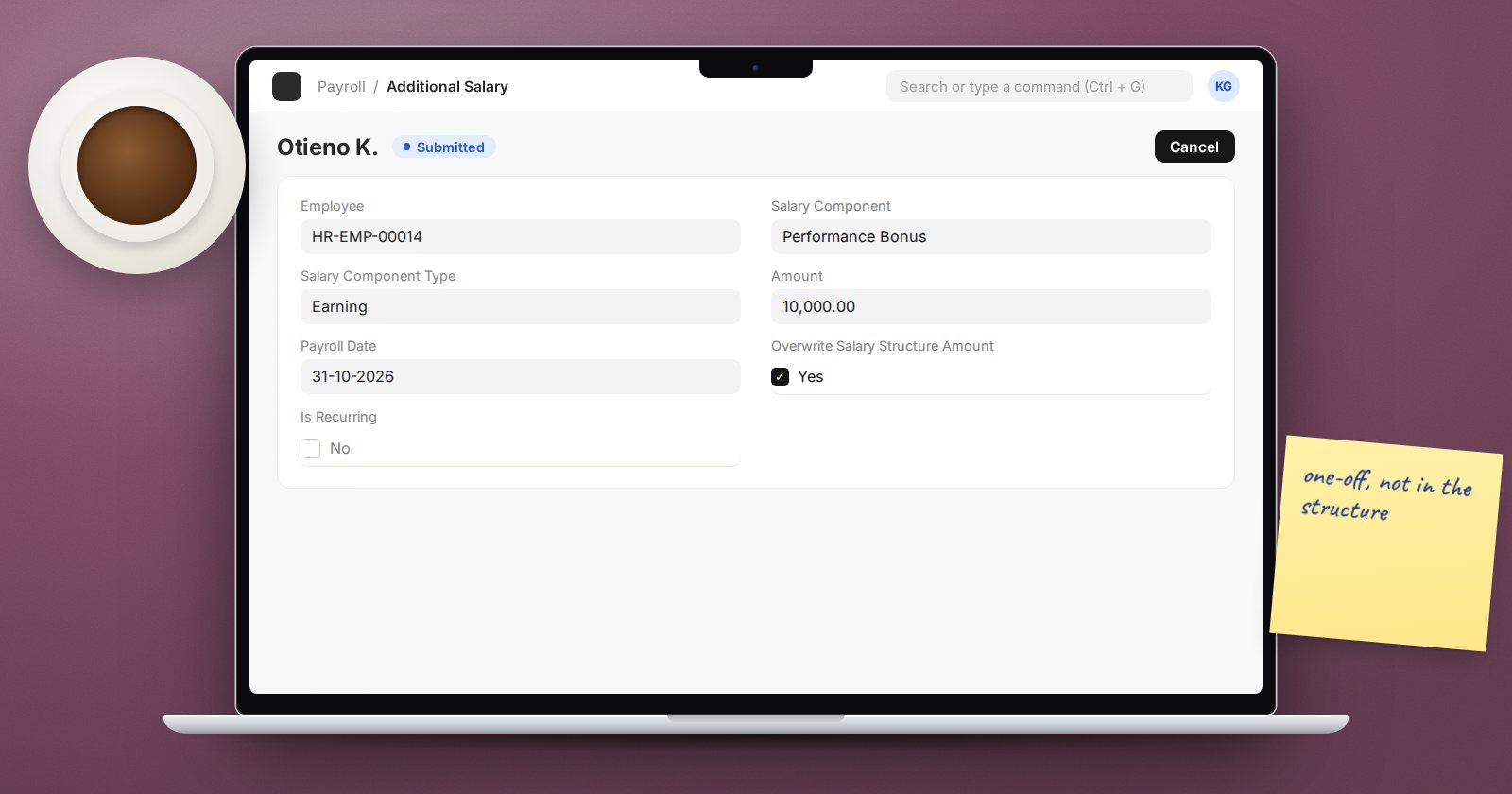
Some pay items do not belong in a salary structure: a one-time bonus, a commission for a single month, a recovery for a damaged item, an allowance for a three-month project. Editing the structure for these would be risky and messy. ERPNext provides Additional Salary for exactly this: an extra earning or deduction for one employee, for one payroll date or a date range.
The fields
- Employee and Company.
- Salary Component - any existing earning or deduction component. The Salary Component Type fills from it, so the component decides whether this adds or subtracts.
- Amount - cannot be negative. To reduce pay, use a deduction component.
- Payroll Date - for a one-off entry, the date that places it in a payroll period.
- Is Recurring with From Date and To Date - for an amount that repeats every period in a range.
- Overwrite Salary Structure Amount - ticked by default. Explained below.
- Deduct Full Tax on Selected Payroll Date - for taxable earnings, takes the full tax on this amount in the same period rather than spreading it.
The employee must already have a salary structure assigned, and dates must fall between the joining and relieving dates.
Overwrite or add?
This setting confuses many people, so here is the rule:
- Ticked: if the salary structure already contains the same component, the Additional Salary amount replaces the structure amount for that period.
- Unticked: the amount is added as its own line, on top of any amount the structure already gives for that component.
Example: a structure pays a fixed transport allowance. In one month the employee should get a different figure. Additional Salary for the transport component with overwrite ticked sets that month's figure. If instead you want to pay the normal allowance plus an extra amount, untick overwrite.
For a component that is not on the structure at all, both settings simply add the line.
Recurring entries
Tick Is Recurring and set the date range. The amount appears on every salary slip whose period falls in the range. ERPNext blocks two active recurring entries for the same employee and component with overlapping dates. To stop a recurring entry early, tick Disabled on it rather than cancelling past periods.
Entries created for you
Other HRMS documents create Additional Salary automatically. For example, when an Employee Advance is set to be repaid from salary, Create > Deduction from Salary produces an Additional Salary deduction linked back to the advance through Reference Document Type and Reference Document. Seeing those references tells you where an entry came from.
Good habits
- Enter all additional salaries before creating the month's salary slips, and check the Salary Register for them before submitting.
- Use clear component names, such as "Performance Bonus" rather than "Other Earnings", so payslips explain themselves.
- Attach the approval (an email or memo) to the Additional Salary record.
- For many employees at once, prepare the entries in a spreadsheet and load them with Data Import, then submit.
Try it
For a test employee, submit one Additional Salary with overwrite ticked on a component already in the structure, and one with overwrite unticked. Create the salary slip and compare: the first should show a changed amount on the existing line, the second an extra amount.
One-off pay items and how they flow through the payroll run are covered in the Payroll course.
